> For the complete documentation index, see [llms.txt](https://docs.voltera.io/docs/llms.txt). Markdown versions of documentation pages are available by appending `.md` to page URLs; this page is available as [Markdown](https://docs.voltera.io/docs/v-one/learn-v-one/circuit-design-for-v-one/designing-with-pcb-templates.md).
# Designing with PCB Templates
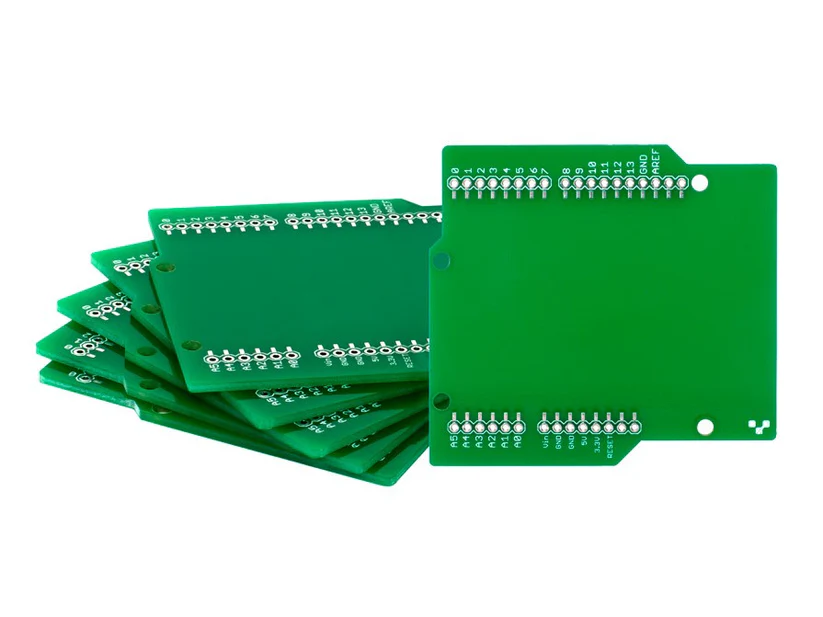
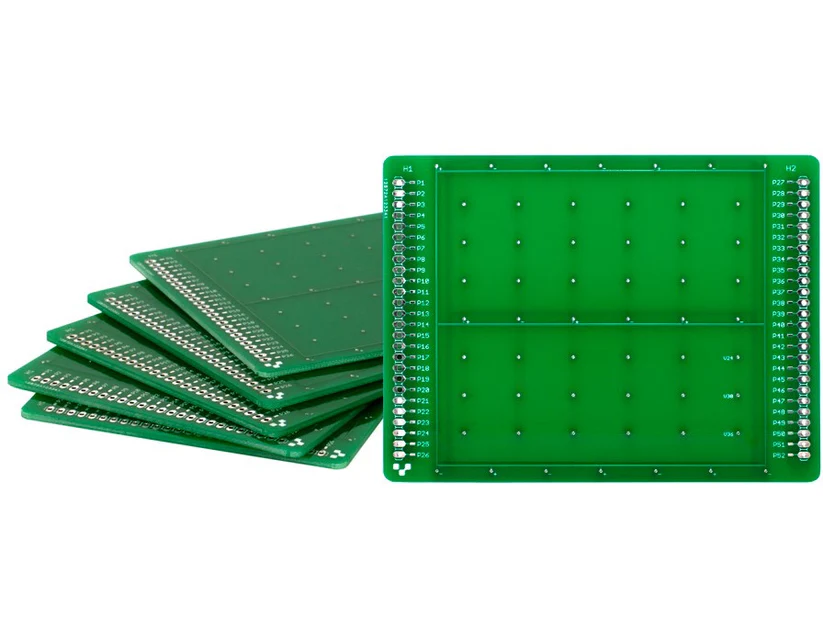
Our prefabricated PCB templates are a great way to streamline your circuit prototyping and easily integrate circuits with many popular microcontroller development boards.
This page will outline the best practises and helpful tips you should know when designing circuits for the V-One utilising the prefabricated substrate and template PCB's. The design files for all of the substrates and templates we offer can be found through the link below and purchased from the [materials section of our store](https://store.voltera.io/collections/materials?page=1).
{% embed url="" %}
## Designing With Templates
{% hint style="warning" %}
This guide provides a general outline on how to design gerber files to use with our various PCB templates. Specific PCB design softwares may not work with the following file import procedure suggestions.
{% endhint %}
### Import Design Files
{% tabs %}
{% tab title="EAGLE Library" %}
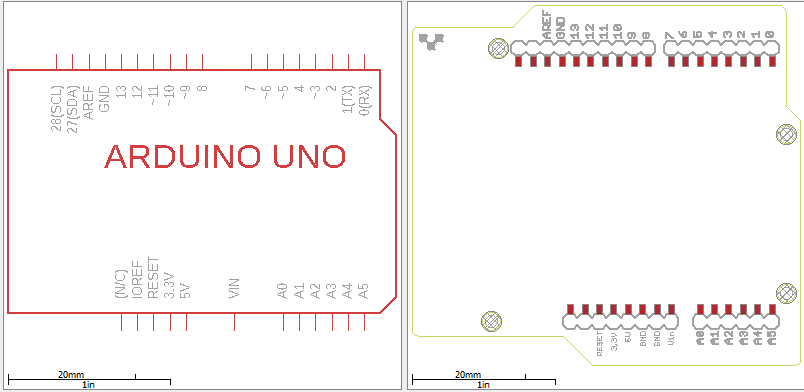
The EAGLE library containing all symbol and footprint files for the templates can be found in the [**Substrates and Templates**](https://docs.voltera.io/v-one/downloads/substrates-and-templates) download page.
Many PCB design programs allow you to import EAGLE libraries and use them. There is also a free online EAGLE library converter called [SnapEDA ](https://www.snapeda.com/home/)that can convert the EAGLE library into many different PCB design softwares native file format.
This method will allow you to work directly with the associated circuit schematic part when designing the circuit as well as the part footprint when designing the PCB.
{% hint style="info" %}
This is the recommended way to design for our substrates and templates.
{% endhint %}
{% endtab %}
{% tab title="Import BRD file" %}
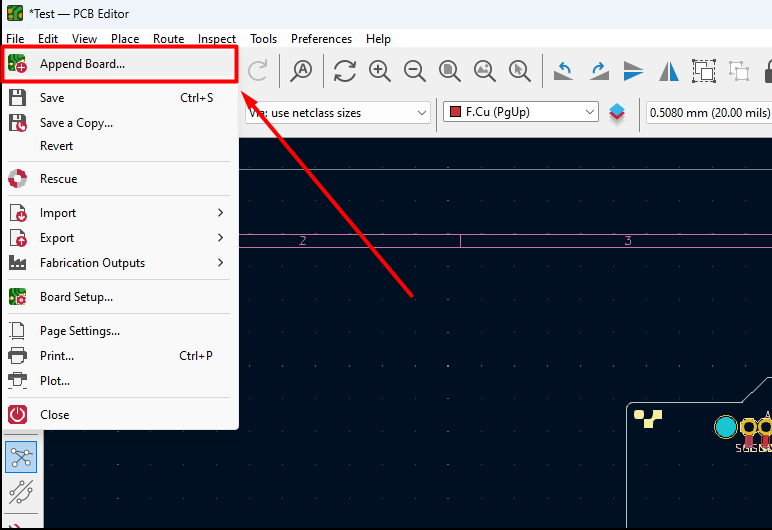
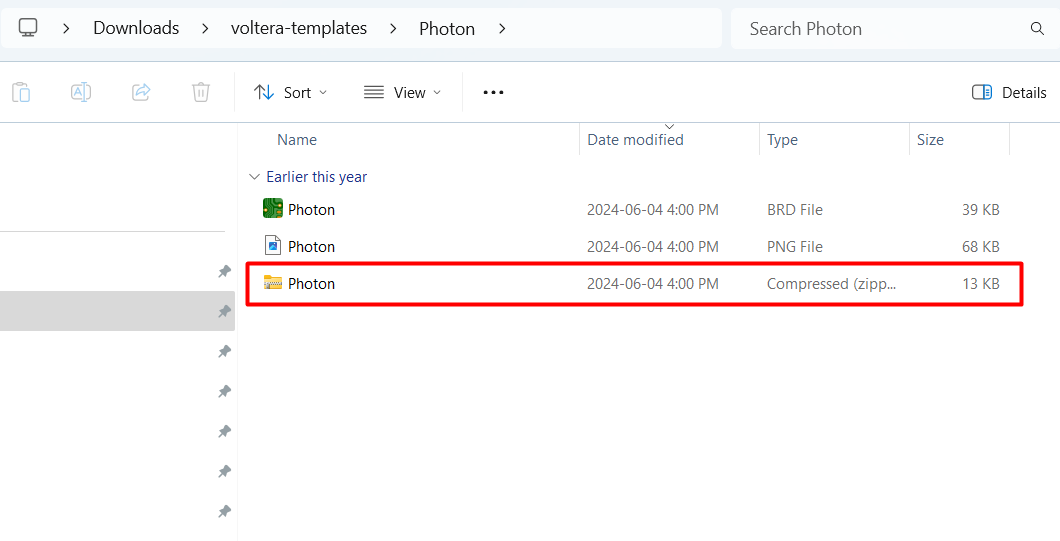
Some PCB design softwares allow you to open a premade board (BRD) file and "append" it to your project. This allows you to place and use the board in your design and edit it's footprint.
Append board function in kiCAD
#### Pre-plated Vias Templates
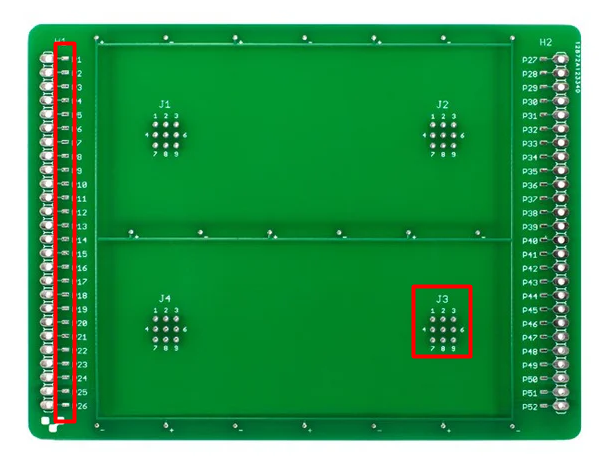
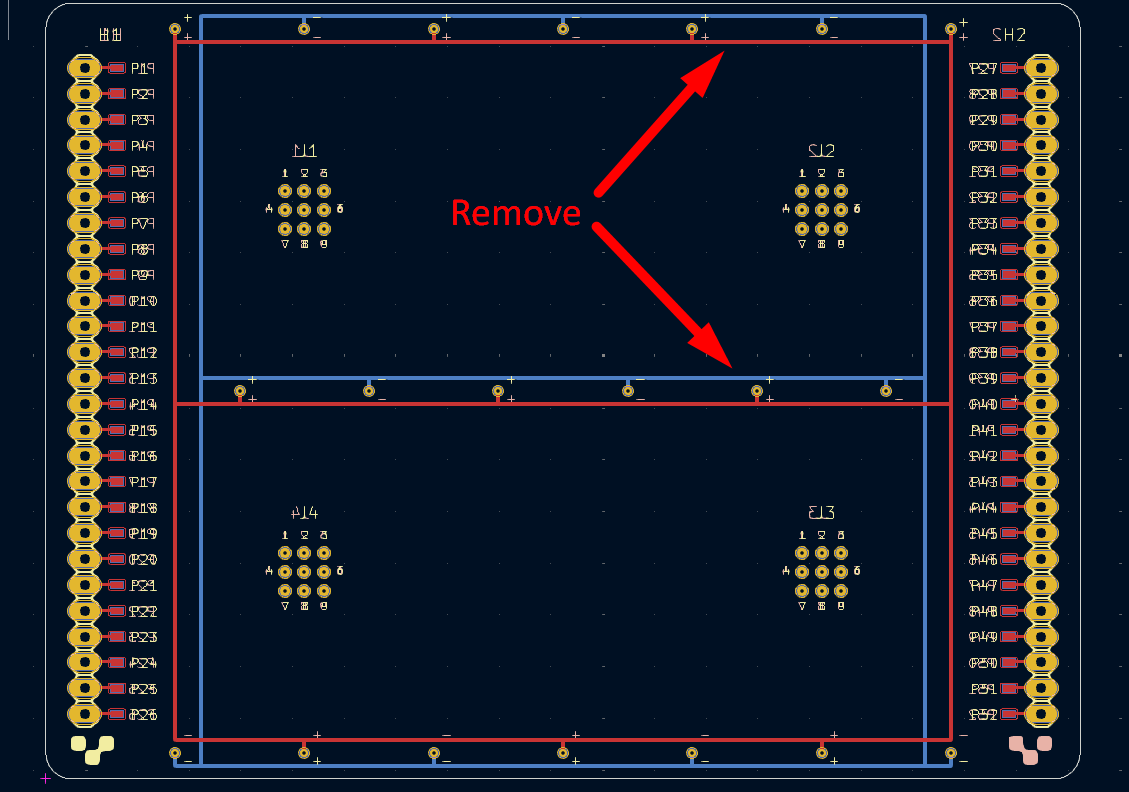
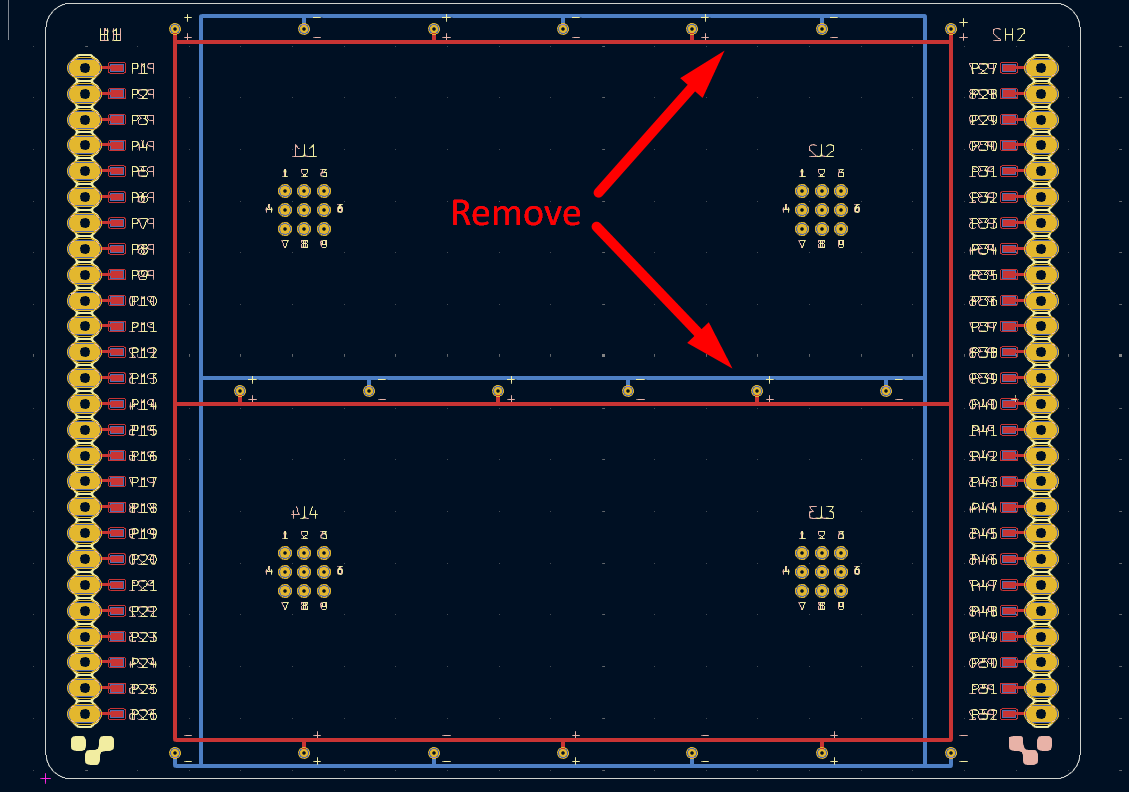
If you are working with either the pre-plated **distributed** or **clustered** vias templates you will need to remove both positive and negative signal traces from the board file before designing your circuit.
These traces have already been fabricated into the PCB template and do not need to be printed. Leaving them in will cause interference when routing traces in your PCB design.
{% endtab %}
{% tab title="Import gerber files" %}
{% hint style="warning" %}
This method should only be attempted as a last resort.
{% endhint %}
1. Extract all of the gerber files for the chosen substrate or template contained in the compressed folder.
2. Import the copper\_top (GTL) and copper\_bottom (GBR) layer into the PCB Editor under the correct corresponding layer dependent on your design software.
{% hint style="info" %}
This method will import all features of a layer as polygons in your design. You may need to replace via locations with actual vias in your design.
{% endhint %}
3. Remove all unused features.
#### Pre-plated Vias Templates
If you are working with either the pre-plated **distributed** or **clustered** vias templates you will need to remove both positive and negative signal traces from the board file before designing your circuit.
These traces have already been fabricated into the PCB template and do not need to be printed. Leaving them in will cause interference when routing traces in your PCB design.
{% endtab %}
{% endtabs %}
### Editing With Gerbv
[Gerbv](https://sourceforge.net/projects/gerbv/) is an open source Gerber viewer that also contains basic Gerber editing functionality including the ability to remove unwanted features from the Gerber file. If the template board footprint cannot be edited in your design software we suggest you use Gerbv to remove all of the unused template features so they are not printed by the V-One.
{% hint style="warning" %}
Editing the Gerber file is permanent! Make sure to use a copy of the original Gerber when editing.
{% endhint %}
1. Download and install [Gerbv](https://sourceforge.net/projects/gerbv/).
2. Open the program and have a copy of your original Gerbers ready.
3. In the main window, navigate to *File>Open Layer(s)*.
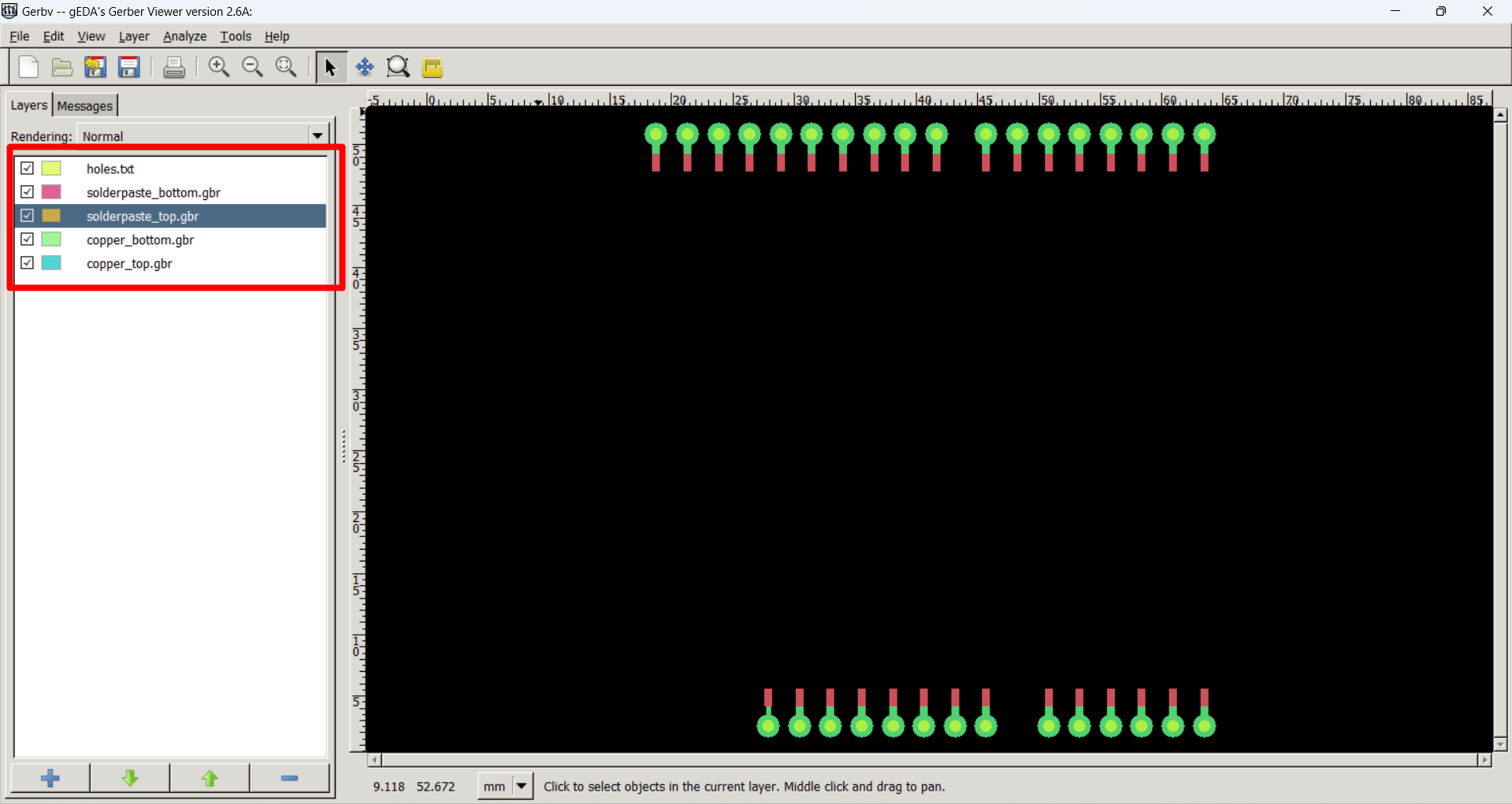
4. Select the copied Gerber files you are working on. You will want to open both the copper and solder paste layers being used as well as the corresponding drill file. The Gerber files should now load in the Gerber viewer.
**Remove Unused Features**
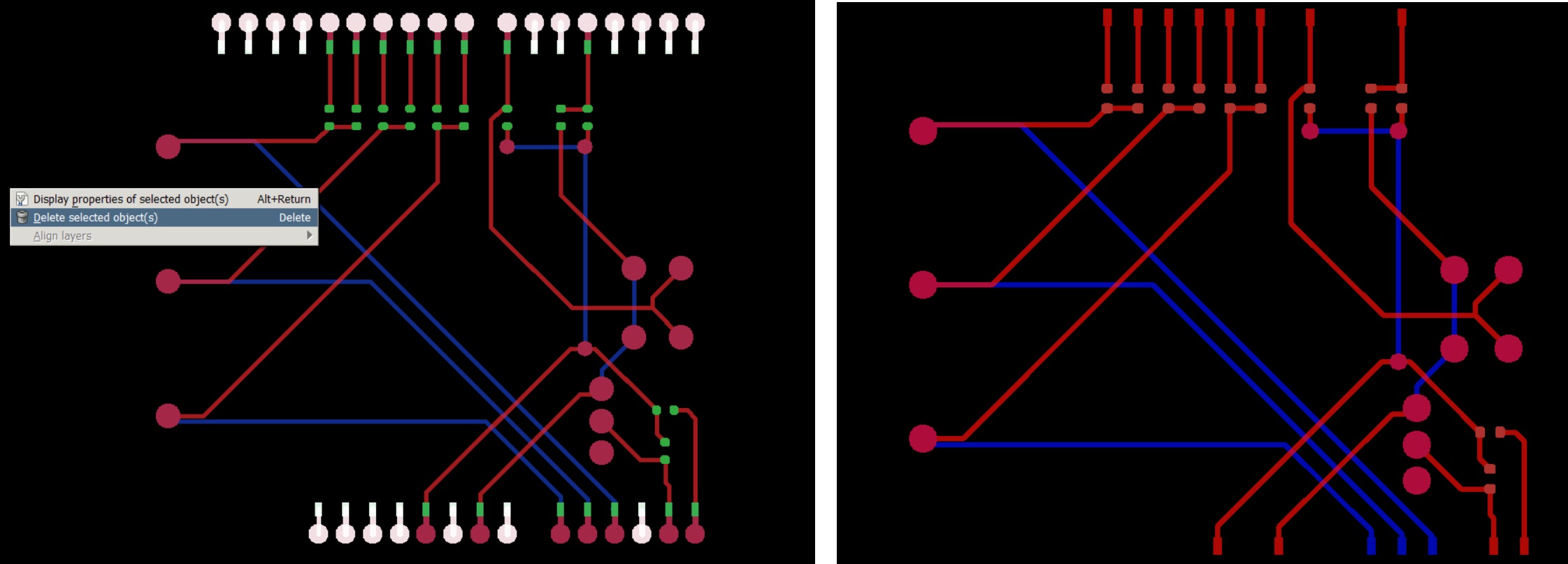
1. Select any unused traces, pads, and features by either clicking to select individual features or clicking and dragging to select multiple. You can also hold down the shift key to select multiple different groups.
2. Delete the features by hitting the delete key or right clicking on the screen and selecting "delete selected object(s)".
3. Navigate to *File>Save Active Layer* or press Ctrl+S to save the edits.
{% hint style="info" %}
You can toggle which layers are visible in the layers menu to make editing easier and ensure all unused features have been removed.
{% endhint %}
## Printing Your Circuit
### Choosing Alignment Points
To ensure that your design aligns with the prefabricated pads on the template board we will be using the aligned print workflow. To ensure that your design is printed properly we want to align our print to the existing features on the template board. Use any pre-fabricated vias or pads to align the print in the V-One software.
---
# Agent Instructions
This documentation is published with GitBook. GitBook is the documentation platform designed so that both humans and AI agents can read, navigate, and reason over technical content effectively. Learn more at gitbook.com.
## Querying This Documentation
If you need additional information that is not directly available in this page, you can query the documentation by asking a question.
Perform an HTTP GET request on the following URL with the `ask` and `goal` query parameters:
```
GET https://docs.voltera.io/docs/v-one/learn-v-one/circuit-design-for-v-one/designing-with-pcb-templates.md?ask=&goal=
```
`ask` is the immediate question: it should be specific, self-contained, and written in natural language.
`goal` is what the user is ultimately trying to achieve, the reason they need the answer. Sharing it helps GitBook give you a better, more relevant answer. A goal is most helpful when it describes the outcome the user wants rather than restating the question. For example, with `ask=how do I create an API token`, a goal like `automate deployments from our CI pipeline` lets GitBook tailor the answer to that use case.
The response will contain a direct answer to the question and relevant excerpts and sources from the documentation.
Use this mechanism when the answer is not explicitly present in the current page, you need clarification or additional context, or you want to retrieve related documentation sections.
.png?alt=media&token=75346adf-69e4-44fa-a476-1b8f3d0e9d72)
.png?alt=media&token=ba9d1469-df50-46e7-90e6-9b9ad4ba2943)