> For the complete documentation index, see [llms.txt](https://docs.voltera.io/docs/llms.txt). Markdown versions of documentation pages are available by appending `.md` to page URLs; this page is available as [Markdown](https://docs.voltera.io/docs/nova/learn-nova/software-overview/calibration.md).
# Calibration
Although NOVA ships with a 'standard' conductive ink, we assume that every NOVA user will at some point need to figure out how to dispense a new material, or at least to dispense with a different nozzle. For that, there's the Calibrate workflow. This guide will take you through the calibration workflow to work out the print settings for a new ink.
## Calibrate Workflow
**Open up the software**
To get started, you will need to add and calibrate a new printing material. Select **CALIBRATE** to start this process.
#### Choose Paste
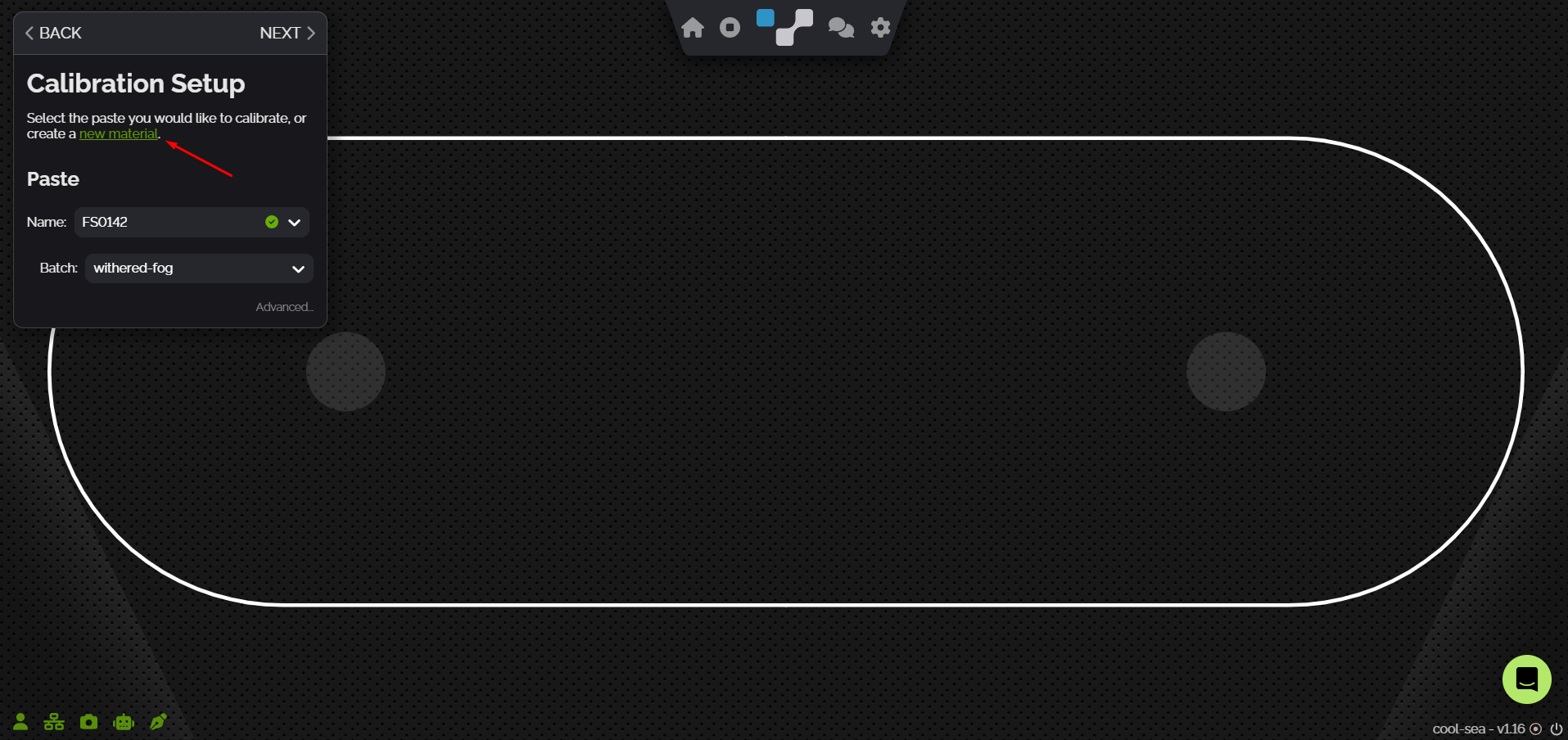
The first step in calibration is choosing the 'paste' (your ink or other material) that you want to print. If you don't already have a material setting for this, you are prompted to create a **new material**, using some default baseline settings.
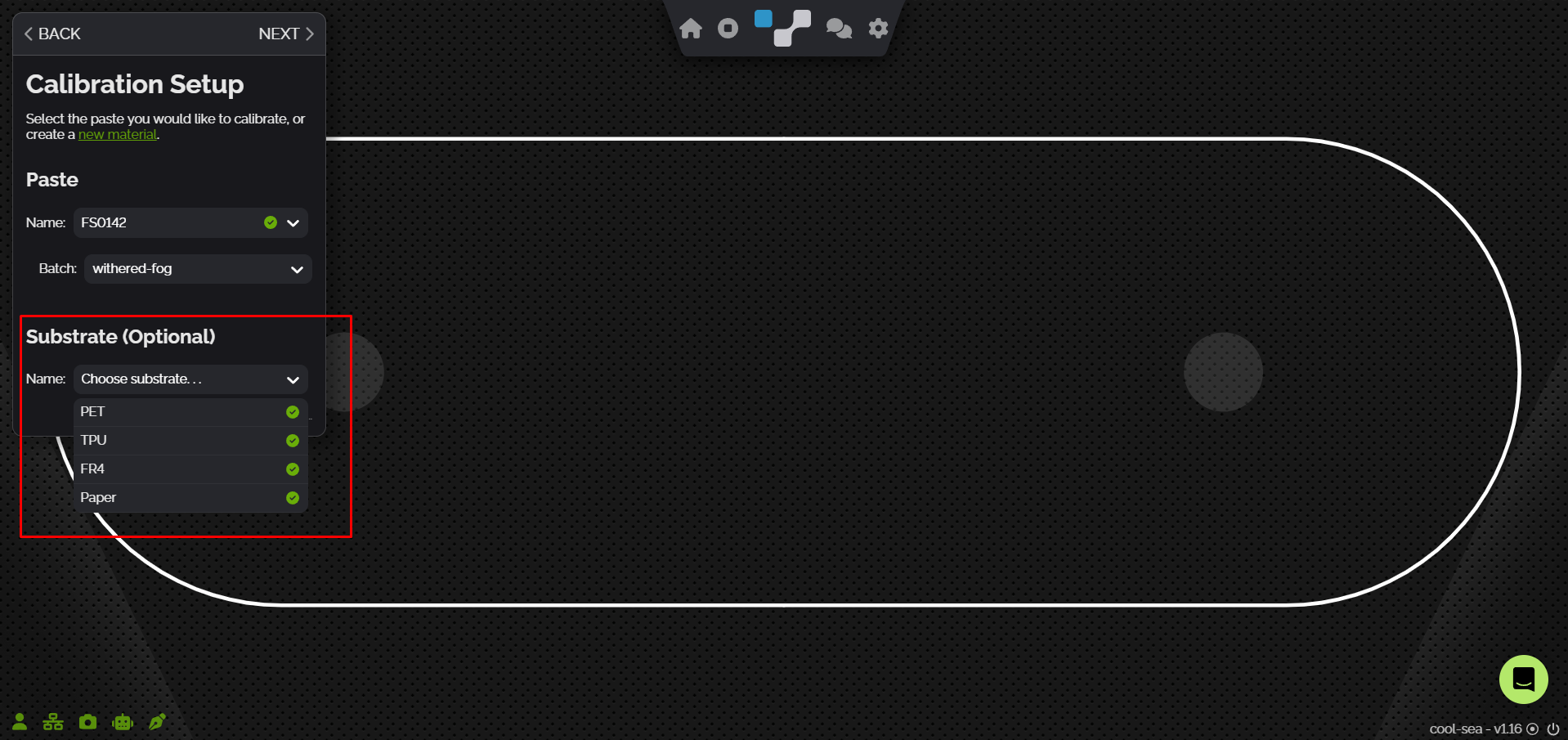
If you want to calibrate your material directly on a substrate instead of the calibration plate you can click the **advanced** button and select the substrate you want to calibrate on.
#### Select Calibration Pattern Grid Size
If you are calibrating on a substrate the next step will be to choose the size of the calibration pattern grid that you will be working with. Ensure that the size of the grid does not exceed the size of the substrate that you are calibrating on. You will be able to align this pattern on your substrate in a future step.
## Measure Height
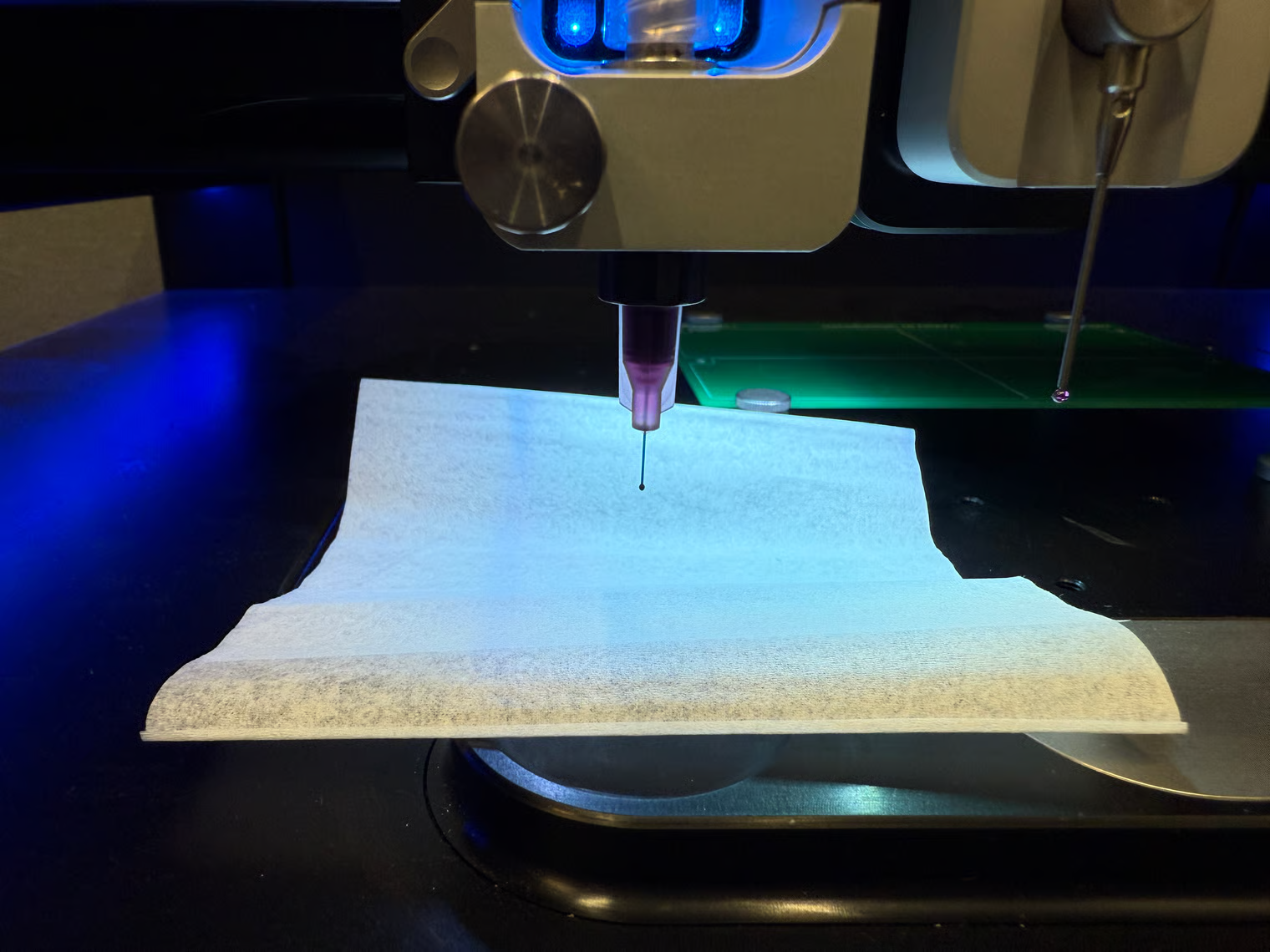
In this step, NOVA will probe the surface of the Calibration Plate or substrate, where the printing will happen.
#### Target Quality
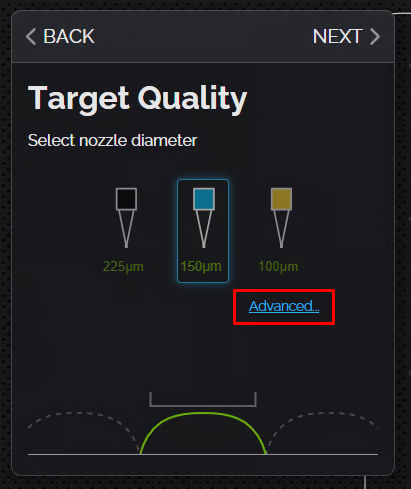
In the target quality step, you tell NOVA what you're expecting with your material, along with some important parameters. Each entry here will affect the print settings for your new material, so if you want to use a new nozzle diameter, you should run the procedure again.
Specifically, you must tell NOVA:
* The diameter of the nozzle you're using
* Your target Trace Width
* Your desired Print Height
Optionally, you can click More... to set the Dispenser temperature. Typically, this defaults to 35°C.
#### ProTip: Quality Error Checking
As you enter the values, NOVA does some error-checking in the background, to help suggest if you may be off track. It displays this in two ways: first, by showing how the ink would need to print, given your inputs (which can lead to some wacky patterns), and a warning or error statement.
## Estimate Pressure
The Estimate Pressure step estimates the baseline dispense pressure for the material. For this step, NOVA will hover the Dispenser over the drip tray, and slowly increment the pressure in the cartridge until you see some ink collecting on the tip. At that point, you can click **STOP** to lock in the estimate.
{% hint style="info" %}
You may notice that the dispenser needs to heat up before you’re able to proceed with this step.
{% endhint %}
## Calibrate Paste
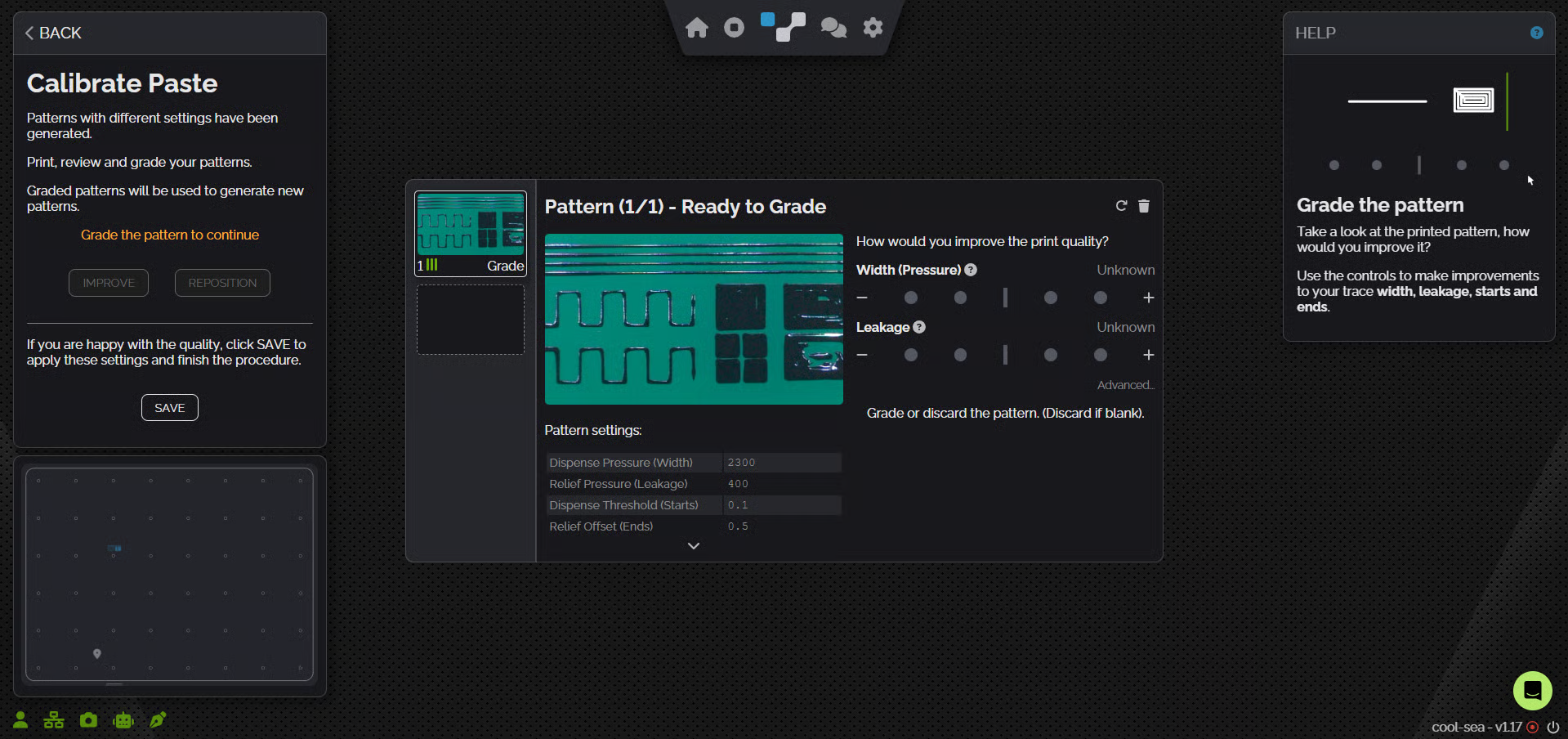
At this Step, NOVA is ready to calibrate the paste. The calibration process guides the user through 3 stages, which you repeat until you're happy.
{% stepper %}
{% step %}
### Print
Using the current settings, NOVA prints the calibration pattern, and snaps a picture with the built-in camera.
{% endstep %}
{% step %}
### Grade
Based on the image, NOVA asks you what you would like to improve. In the default screen, there are two options:
**Width (Pressure)**: Is your trace width thin or too wide? \
**Leakage:** Is there ink leaking out of the nozzle?
{% hint style="info" %}
For the best calibration results focus on the adjusting the settings from the top down. Start with the Width (Dispense Pressure) setting and adjust until you are happy. Then work down the list of settings in order until you get a print quality that you are happy with.\
\
**Note:** You may not need to adjust the advanced settings at all!
{% endhint %}
Clicking Advanced will also allow you to specify whether the starts or ends of your traces need some filling in.
{% endstep %}
{% step %}
### Improve
Clicking **IMPROVE** will lock in our feedback from the grading step and generate new print settings. NOVA will then print a new calibration pattern next to our previous pattern. No need to wipe the substrate clean.
**We'll repeat steps 1 - 3 until we have print results we're happy with.**
{% endstep %}
{% step %}
### Use
To lock in our finalized print settings we will click the **SAVE** button. We’re then shown all of the print settings that we generated for our material and we can **FINISH** the workflow to save them to our materials library.
{% endstep %}
{% endstepper %}
Now that we have our material settings calibrated and they are accessible in our materials library at anytime!
---
# Agent Instructions
This documentation is published with GitBook. GitBook is the documentation platform designed so that both humans and AI agents can read, navigate, and reason over technical content effectively. Learn more at gitbook.com.
## Querying This Documentation
If you need additional information that is not directly available in this page, you can query the documentation dynamically by asking a question.
Perform an HTTP GET request on the current page URL with the `ask` query parameter, and the optional `goal` query parameter:
```
GET https://docs.voltera.io/docs/nova/learn-nova/software-overview/calibration.md?ask=&goal=
```
`ask` is the immediate question: it should be specific, self-contained, and written in natural language.
`goal` is optional and describes the broader end goal you are ultimately trying to accomplish on behalf of the user. GitBook uses it to tailor the answer towards what is most useful for that goal.
The response will contain a direct answer to the question and relevant excerpts and sources from the documentation.
Use this mechanism when the answer is not explicitly present in the current page, you need clarification or additional context, or you want to retrieve related documentation sections.