
# Plan Workflow

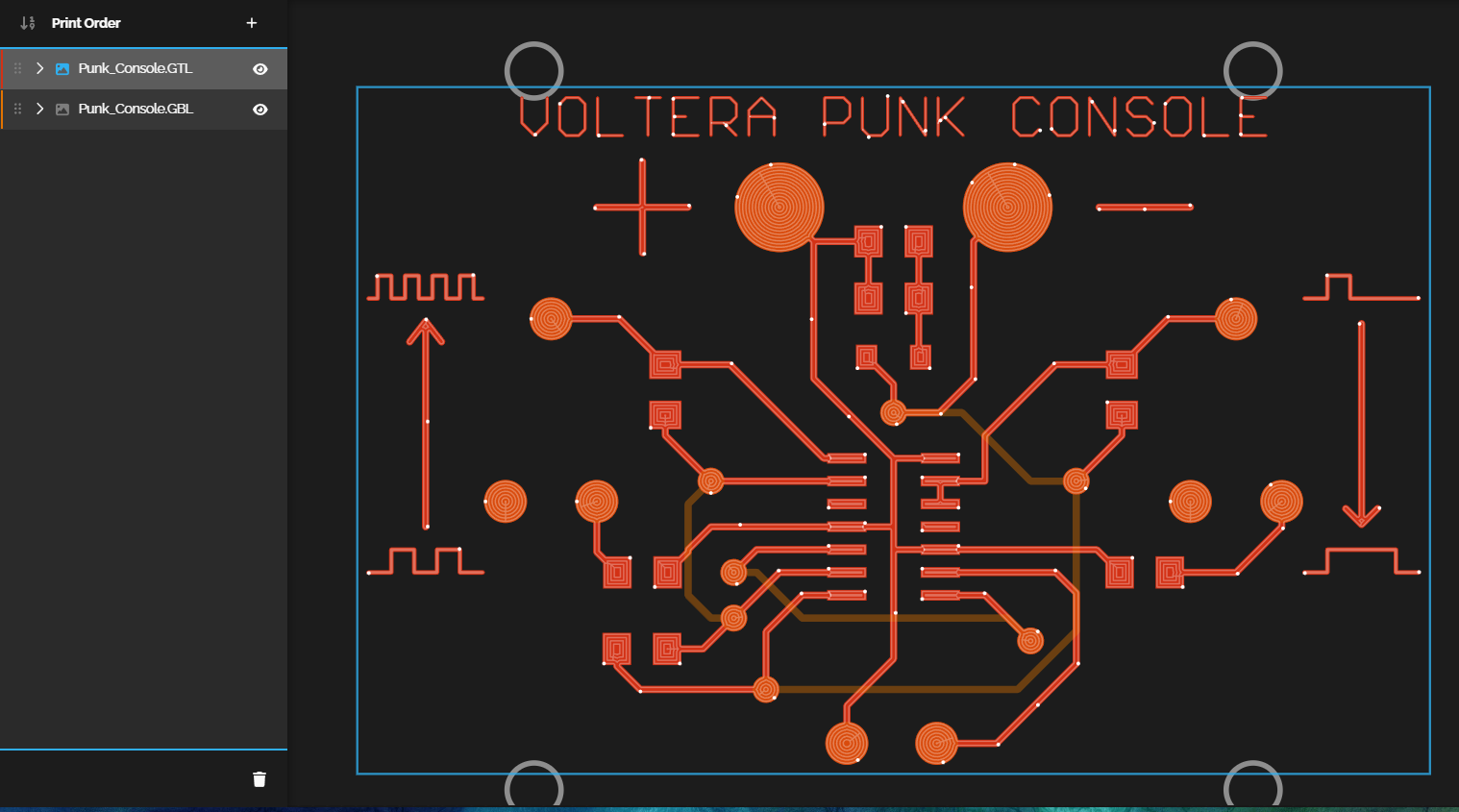
Plan is a new workflow designed to unlock advanced capabilities, such as multilayer printing, and the ability to alter the sequence of trace printing. It's an essential artwork planning tool for users printing multi-material designs, users wanting more control over the printing process, or for users looking to reduce setup time for repeat prints.

<figure><img src="https://3113512132-files.gitbook.io/~/files/v0/b/gitbook-x-prod.appspot.com/o/spaces%2FYKzrL5Rz2l0ufpEa39Yc%2Fuploads%2FaDMDBzW4glafiZZ3Hg0K%2FPlan%20Tile.png?alt=media&#x26;token=111c178b-2566-4a19-8aa6-19af93e0af7e" alt=""><figcaption></figcaption></figure>

***

### Plan Feature Walkthrough Video

This video highlights the main elements of the Plan interface, the process from build to print, and explains how to get the most out of the Plan feature, setting you up for successful prints with less trial and error.

{% embed url="<https://www.youtube.com/watch?v=i6wUTKv6mYs>" %}

***

### Accessing the Plan Feature

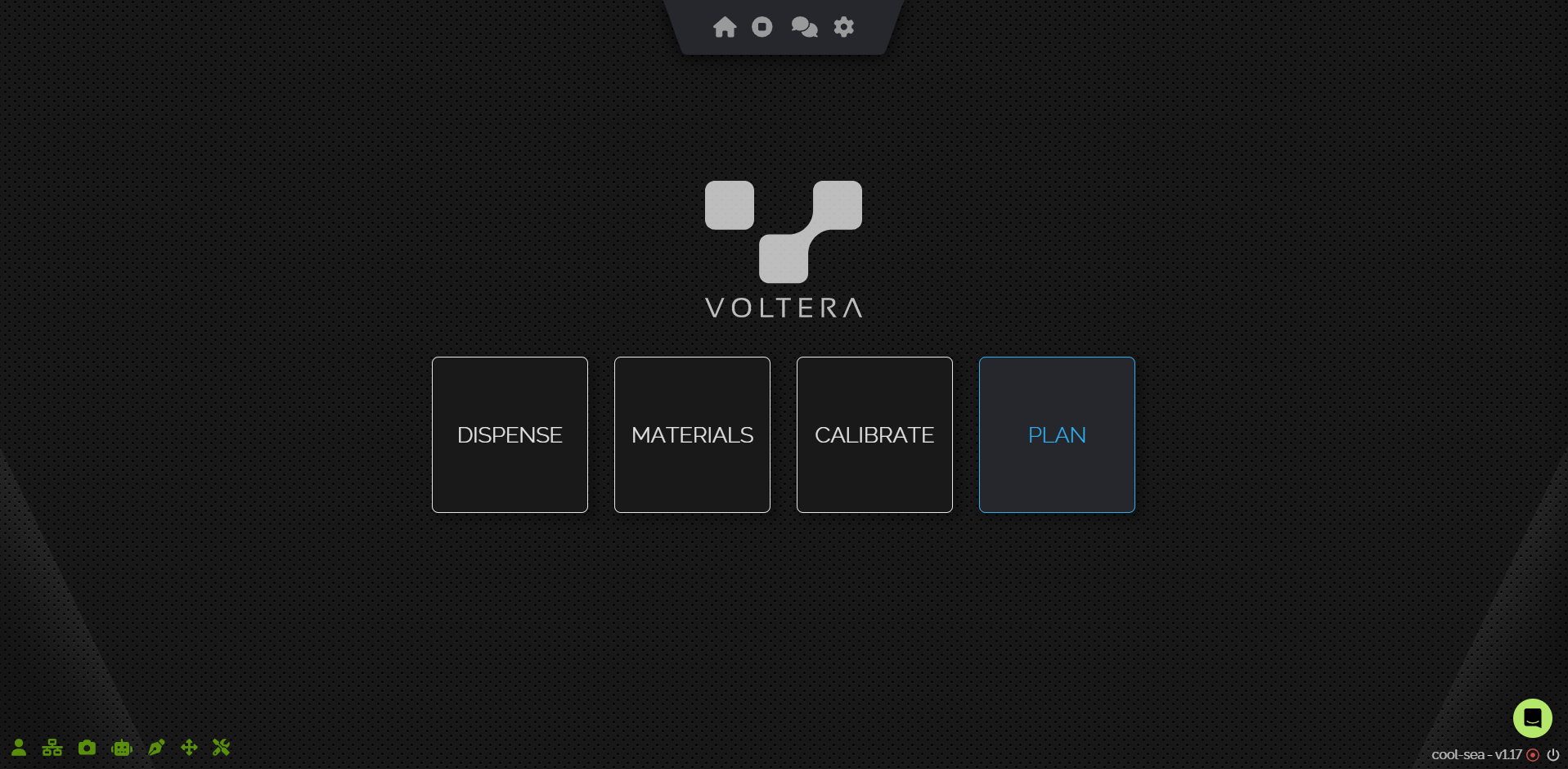
To start working with the Plan feature, navigate to myvoltera.io, sign in or create an account, and select the Plan workflow tile from the home screen.

{% hint style="warning" %}
Currently, Plans are saved to the cloud, so NOVA needs to be connected online and logged into a user account (not a guest account) to utilize the Plan feature.
{% endhint %}

<figure><img src="https://3113512132-files.gitbook.io/~/files/v0/b/gitbook-x-prod.appspot.com/o/spaces%2FYKzrL5Rz2l0ufpEa39Yc%2Fuploads%2FVAu2ibgh0NBn4vvZArKJ%2Fplan%20home%20screen.png?alt=media&#x26;token=3f16dc35-9cb1-4e33-bf77-ac0b54167fe5" alt=""><figcaption></figcaption></figure>

Once inside Plan, you can see a helpful carousel outlining the process you’ll follow to complete the build.

***

### User Interface Walkthrough

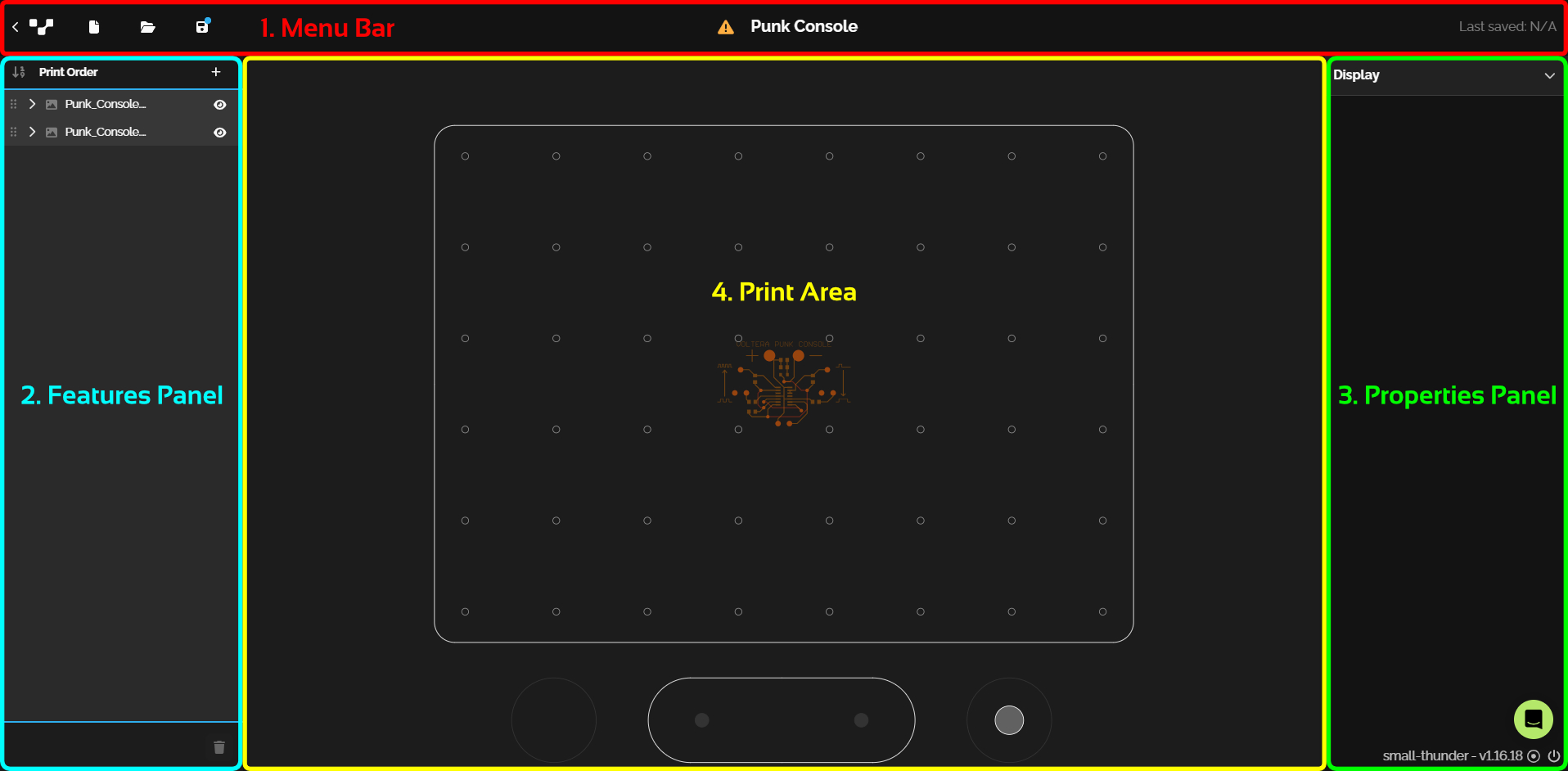
The Plan interface is made up of four main sections – the Menu Bar, Features Panel, Properties Panel, and Print Area.

<figure><img src="https://3113512132-files.gitbook.io/~/files/v0/b/gitbook-x-prod.appspot.com/o/spaces%2FYKzrL5Rz2l0ufpEa39Yc%2Fuploads%2FHZMrgMmmPJKm2uhrTbwM%2FPlan%20Screen%20Layout.jpg?alt=media&#x26;token=7be9fad3-211d-4355-8242-54e947b20b9d" alt=""><figcaption></figcaption></figure>

In the Menu Bar, a user can:

|                                     |                                                                                                                                                                                                                                                            |
| ----------------------------------- | ---------------------------------------------------------------------------------------------------------------------------------------------------------------------------------------------------------------------------------------------------------- |
| Create a new Plan                   | <img src="https://3113512132-files.gitbook.io/~/files/v0/b/gitbook-x-prod.appspot.com/o/spaces%2FYKzrL5Rz2l0ufpEa39Yc%2Fuploads%2FlaWvMaKOWeh6jD6Zg4z2%2Fimage.png?alt=media&#x26;token=16dd216b-36c5-483e-a722-d4324340f936" alt="" data-size="original"> |
| Open an existing Plan               | <img src="https://3113512132-files.gitbook.io/~/files/v0/b/gitbook-x-prod.appspot.com/o/spaces%2FYKzrL5Rz2l0ufpEa39Yc%2Fuploads%2F9wh7GTINzfX3tbtLrwoZ%2Fimage.png?alt=media&#x26;token=39b28c56-af31-444c-9863-1425150fc306" alt="" data-size="original"> |
| Save the current Plan               | <img src="https://3113512132-files.gitbook.io/~/files/v0/b/gitbook-x-prod.appspot.com/o/spaces%2FYKzrL5Rz2l0ufpEa39Yc%2Fuploads%2FNCeRuGRSxdezTFOi1O9O%2Fimage.png?alt=media&#x26;token=54ccc0a1-814c-4496-b6bf-0ce879d699df" alt="" data-size="original"> |
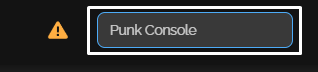
| Change the current Plan's name      | <img src="https://3113512132-files.gitbook.io/~/files/v0/b/gitbook-x-prod.appspot.com/o/spaces%2FYKzrL5Rz2l0ufpEa39Yc%2Fuploads%2Fjbe8ZsCpKSRtBfmjBdEn%2Fimage.png?alt=media&#x26;token=c2d3dd51-b708-4df0-8f3d-0b70dfc2ebe6" alt="" data-size="original"> |
| View the status of the current Plan | <img src="https://3113512132-files.gitbook.io/~/files/v0/b/gitbook-x-prod.appspot.com/o/spaces%2FYKzrL5Rz2l0ufpEa39Yc%2Fuploads%2FqSv6c7PgH6Z9W94jnjgv%2Fimage.png?alt=media&#x26;token=28833709-81b4-4931-b535-70e3cffa7435" alt="" data-size="original"> |

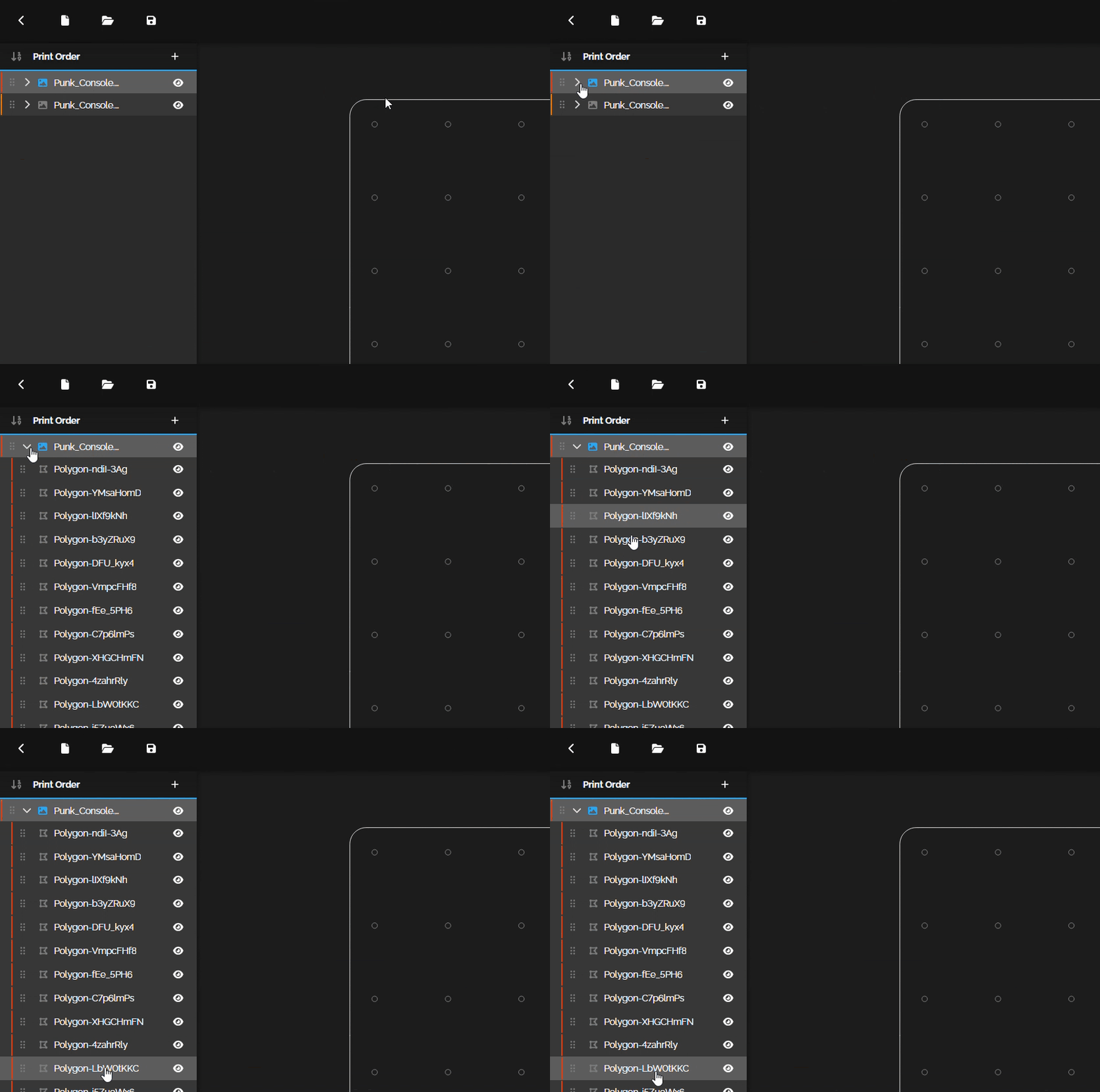
The Features Panel is where users load artwork files from their designs. The geometry from the artwork is organized in the form of an expandable tree. The order of artwork within the Feature Panel dictates the print order, with artwork at the top of the list being printed first.&#x20;

<figure><img src="https://3113512132-files.gitbook.io/~/files/v0/b/gitbook-x-prod.appspot.com/o/spaces%2FYKzrL5Rz2l0ufpEa39Yc%2Fuploads%2Fzd1CDCpDz3voXT6POTWT%2FArtrowk%20Tree.gif?alt=media&#x26;token=8047585c-3da5-4cb0-9b35-5db3caef4052" alt=""><figcaption></figcaption></figure>

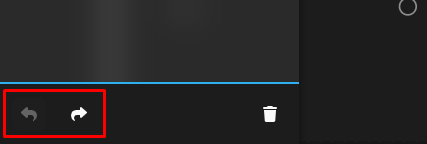
At the bottom of the Features panel you'll also notice the Undo/Redo buttons. These can be used if you accidentally remove a probe target or want to reverse a change you made.&#x20;

<figure><img src="https://3113512132-files.gitbook.io/~/files/v0/b/gitbook-x-prod.appspot.com/o/spaces%2FYKzrL5Rz2l0ufpEa39Yc%2Fuploads%2F61nHf5d1PNdB56UJBrDU%2Fimage.png?alt=media&#x26;token=9608acaa-fb41-4bf1-bbd0-b426f3c84714" alt=""><figcaption></figcaption></figure>

{% hint style="info" %}

#### Keyboard Shortcuts for Undo/Redo

#### Windows

Undo: Ctrl+Z

Redo: Ctrl+Shift+Z or&#x20;Ctrl+Y

#### Mac

Undo: Cmd+Z

Redo: Cmd+Shift+Z or&#x20;Cmd+Y
{% endhint %}

The Properties Panel is where the user can access and edit properties for selected features – including toolpaths, and probe targets. It also includes display options that allow the user to choose what’s visible in the Print Area.

<figure><img src="https://3113512132-files.gitbook.io/~/files/v0/b/gitbook-x-prod.appspot.com/o/spaces%2FYKzrL5Rz2l0ufpEa39Yc%2Fuploads%2FXTzpN1X2PkAtrETKzPwq%2FProperties%20Panel.gif?alt=media&#x26;token=bb256b11-9bf7-4a22-b094-b5b9e91be8f0" alt=""><figcaption></figcaption></figure>

And lastly, the Print Area is where Features from the Features Panel are visually displayed. Features can be selected either in the Features Panel, or in the Print Area directly.

<figure><img src="https://3113512132-files.gitbook.io/~/files/v0/b/gitbook-x-prod.appspot.com/o/spaces%2FYKzrL5Rz2l0ufpEa39Yc%2Fuploads%2F2ZsEGlEfHUMFw2PAUmuI%2Fimage.png?alt=media&#x26;token=d46c2f1a-df54-4115-b2ac-2140091f6890" alt=""><figcaption></figcaption></figure>

***

For more detailed information about Plan's features please read our docs below:

<table data-view="cards"><thead><tr><th></th><th data-hidden data-card-target data-type="content-ref"></th><th data-hidden data-card-cover data-type="files"></th></tr></thead><tbody><tr><td><strong>Designing Multi-Layer Artworks</strong></td><td><a href="plan-workflow/5.1-designing-multi-layer-artworks">5.1-designing-multi-layer-artworks</a></td><td><a href="https://3113512132-files.gitbook.io/~/files/v0/b/gitbook-x-prod.appspot.com/o/spaces%2FYKzrL5Rz2l0ufpEa39Yc%2Fuploads%2FMQnBTMo5Rr78DHl0Xi5x%2FDesigning.png?alt=media&#x26;token=a68ef8c9-2b50-48c6-af90-6dd39fba1f04">Designing.png</a></td></tr><tr><td><strong>Loading Artwork Files</strong></td><td><a href="plan-workflow/5.2-loading-artwork-files">5.2-loading-artwork-files</a></td><td><a href="https://3113512132-files.gitbook.io/~/files/v0/b/gitbook-x-prod.appspot.com/o/spaces%2FYKzrL5Rz2l0ufpEa39Yc%2Fuploads%2FZX8beJJK0frr5DTDsL60%2FLoading%20Artwork.png?alt=media&#x26;token=cb1ff5e1-c0ee-4843-b876-faca11411a48">Loading Artwork.png</a></td></tr><tr><td><strong>Print Order</strong></td><td><a href="plan-workflow/5.3-print-order">5.3-print-order</a></td><td><a href="https://3113512132-files.gitbook.io/~/files/v0/b/gitbook-x-prod.appspot.com/o/spaces%2FYKzrL5Rz2l0ufpEa39Yc%2Fuploads%2FjpMMA1d26BQQjfkLIRWt%2FPrint%20Order.png?alt=media&#x26;token=881b3def-eecb-4493-80c7-46528a150455">Print Order.png</a></td></tr><tr><td><strong>Toolpaths</strong></td><td><a href="plan-workflow/5.4-toolpaths">5.4-toolpaths</a></td><td><a href="https://3113512132-files.gitbook.io/~/files/v0/b/gitbook-x-prod.appspot.com/o/spaces%2FYKzrL5Rz2l0ufpEa39Yc%2Fuploads%2FVV9GhqPRUBEZMoTal5Z7%2FToolpaths.png?alt=media&#x26;token=2a634cbe-3333-416f-9996-e2aa5c105f90">Toolpaths.png</a></td></tr><tr><td><strong>Probe Targets</strong></td><td><a href="plan-workflow/5.5-probe-targets">5.5-probe-targets</a></td><td><a href="https://3113512132-files.gitbook.io/~/files/v0/b/gitbook-x-prod.appspot.com/o/spaces%2FYKzrL5Rz2l0ufpEa39Yc%2Fuploads%2FHS4idvkL1jTxF9zB4MPx%2FProbe%20Targets.png?alt=media&#x26;token=fb9bd600-081a-4a3b-a4d9-1922987ff0ce">Probe Targets.png</a></td></tr><tr><td><strong>Saving and Dispensing Your Plan</strong></td><td><a href="plan-workflow/5.6-saving-and-dispensing-your-plan">5.6-saving-and-dispensing-your-plan</a></td><td><a href="https://3113512132-files.gitbook.io/~/files/v0/b/gitbook-x-prod.appspot.com/o/spaces%2FYKzrL5Rz2l0ufpEa39Yc%2Fuploads%2FPx5sciYSLfmLPQ8Ztd47%2FSaving.png?alt=media&#x26;token=0d9deee4-959a-4c3d-9578-0ff93c4eba52">Saving.png</a></td></tr></tbody></table>