> For the complete documentation index, see [llms.txt](https://docs.voltera.io/docs/llms.txt). Markdown versions of documentation pages are available by appending `.md` to page URLs; this page is available as [Markdown](https://docs.voltera.io/docs/nova/getting-started/starter-project/setup/adding-materials.md).
# Adding Materials
For all 4 prints we’ll be using the same materials. The provided **Black Screen Printing Ink** and **Introduction to NOVA** FR4 substrate.
Both of these materials were supplied with NOVA.
{% hint style="info" %}
Any ink can be used for this project. As an alternative to the supplied FR4 board you can use the PDF file below to print the exercises onto a sheet of PET. If you’re printing onto a sheet of PET, use the vacuum module to mount the substrate rather than the rigid mounting hardware.
{% endhint %}
{% file src="/files/KX89ImRRLmZcJy9HaVFa" %}
***
### Adding Materials
To add our ink and substrate to our materials library we’ll select the **MATERIALS** workflow from the home screen of NOVA’s software.
In the **MATERIALS** workflow you’ll see two options. On the left is your **LIBRARY**, this is where all your material settings are stored to be used during prints and new materials can be added. On the right is the **EXPLORE** tile, this is where materials that Voltera has already calibrated in house can be accessed. These materials can easily be added to your library along with all the required settings so you don't need to calibrate them.
{% hint style="info" %}
All materials settings are stored to your user account.
{% endhint %}
We’ll start by adding our substrate, the FR4 board. To do this we’ll select the **EXPLORE** option:
Within the **EXPLORE** tab find the FR4 substrate and select it to view its details. Then click the **Add to device** button to add it to our materials Library.
Then click the **View in Library** option, this will automatically navigate from the Explore section over to your Library. We can now find FR4 in our materials library along with its preset settings
Next we’ll add our ink. We can do this by either clicking the **+** button at the bottom of the material library bar or the **CREATE** button on the Library home screen if no material is selected.
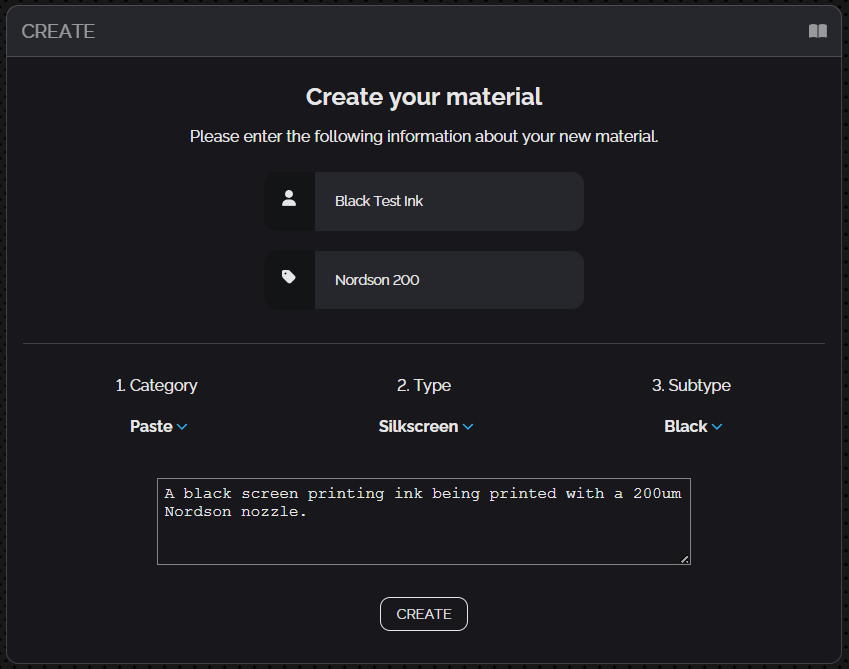
This will bring up a form where we can fill in all the relevant information about the material we’re adding. For our Speedball Screen-Printing Test Ink we’ll use the following information then click **CREATE**:
Name:
Test Ink
Batch Name:
Nordson 200 (this will appear once we set the category as a paste)
Type:
Paste
Subtype:
Black
Notes:
A black Speedball screen printing ink paired with a Nordson 200µm Nozzle for testing.
{% hint style="info" %}
If you know what nozzle type and size you will be using this is a helpful thing to use as the batch name for your material. Each paste setting you create will be specific to the nozzle size you calibrate the material with. Using the batch name as the nozzle identifier can allow you to organize settings for multiple nozzle options under one material.
{% endhint %}
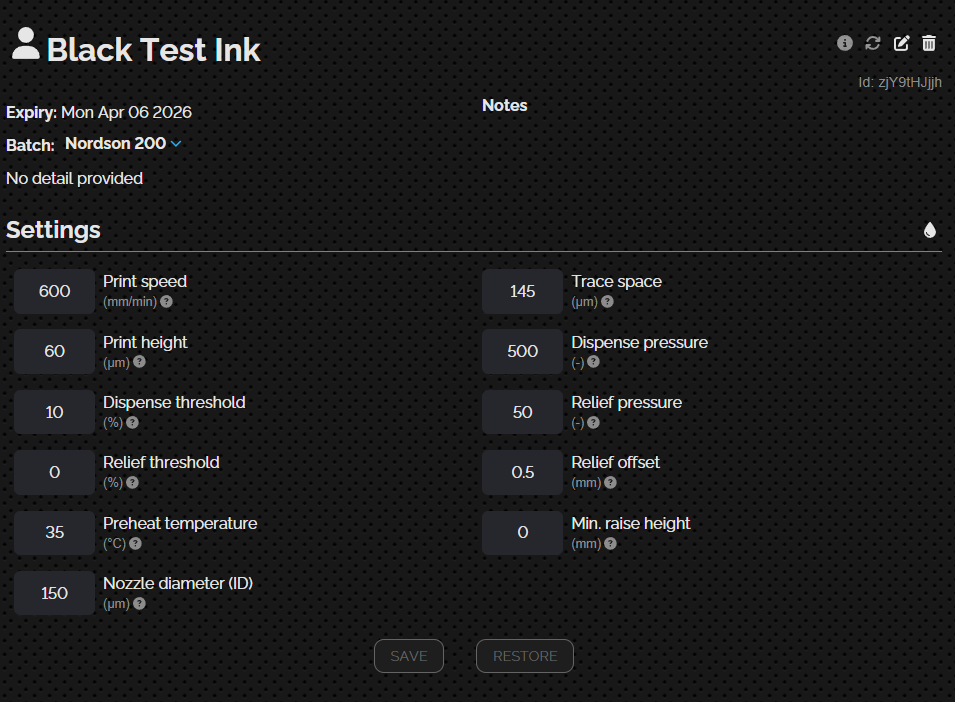
The ink will now be added to the library with some default settings. But don’t worry about that, in Print 1 will be dialing in these settings using the **Calibrate** workflow.
We’re now ready to move onto the next step.
---
# Agent Instructions
This documentation is published with GitBook. GitBook is the documentation platform designed so that both humans and AI agents can read, navigate, and reason over technical content effectively. Learn more at gitbook.com.
## Querying This Documentation
If you need additional information that is not directly available in this page, you can query the documentation by asking a question.
Perform an HTTP GET request on the following URL with the `ask` and `goal` query parameters:
```
GET https://docs.voltera.io/docs/nova/getting-started/starter-project/setup/adding-materials.md?ask=&goal=
```
`ask` is the immediate question: it should be specific, self-contained, and written in natural language.
`goal` is what the user is ultimately trying to achieve, the reason they need the answer. Sharing it helps GitBook give you a better, more relevant answer. A goal is most helpful when it describes the outcome the user wants rather than restating the question. For example, with `ask=how do I create an API token`, a goal like `automate deployments from our CI pipeline` lets GitBook tailor the answer to that use case.
The response will contain a direct answer to the question and relevant excerpts and sources from the documentation.
Use this mechanism when the answer is not explicitly present in the current page, you need clarification or additional context, or you want to retrieve related documentation sections.