> For the complete documentation index, see [llms.txt](https://docs.voltera.io/docs/llms.txt). Markdown versions of documentation pages are available by appending `.md` to page URLs; this page is available as [Markdown](https://docs.voltera.io/docs/nova/getting-started/starter-project/print-4-alignment.md).
# Print 4: Alignment
The final exercise is focused on more complex alignment. The majority of the workflow will be repetition, but we’ll go into more detail on each of the alignment steps to ensure that our print is perfectly aligned. This will serve as a great example alignment for multi-layer printing.
***
To get started, we’ll select the **DISPENSE** workflow tile from the home screen of NOVA’s software.
### Load Pattern
You can download the file for this exercise below and load it into the file import section:
{% file src="/files/rIaIZdSQKf36HQTjcysr" %}
Once the file is loaded, proceed to the next step. Select the same materials used in the previous print, then generate the toolpaths. Continue following the software workflow until you reach the Estimate Alignment step.
### Estimate Alignment
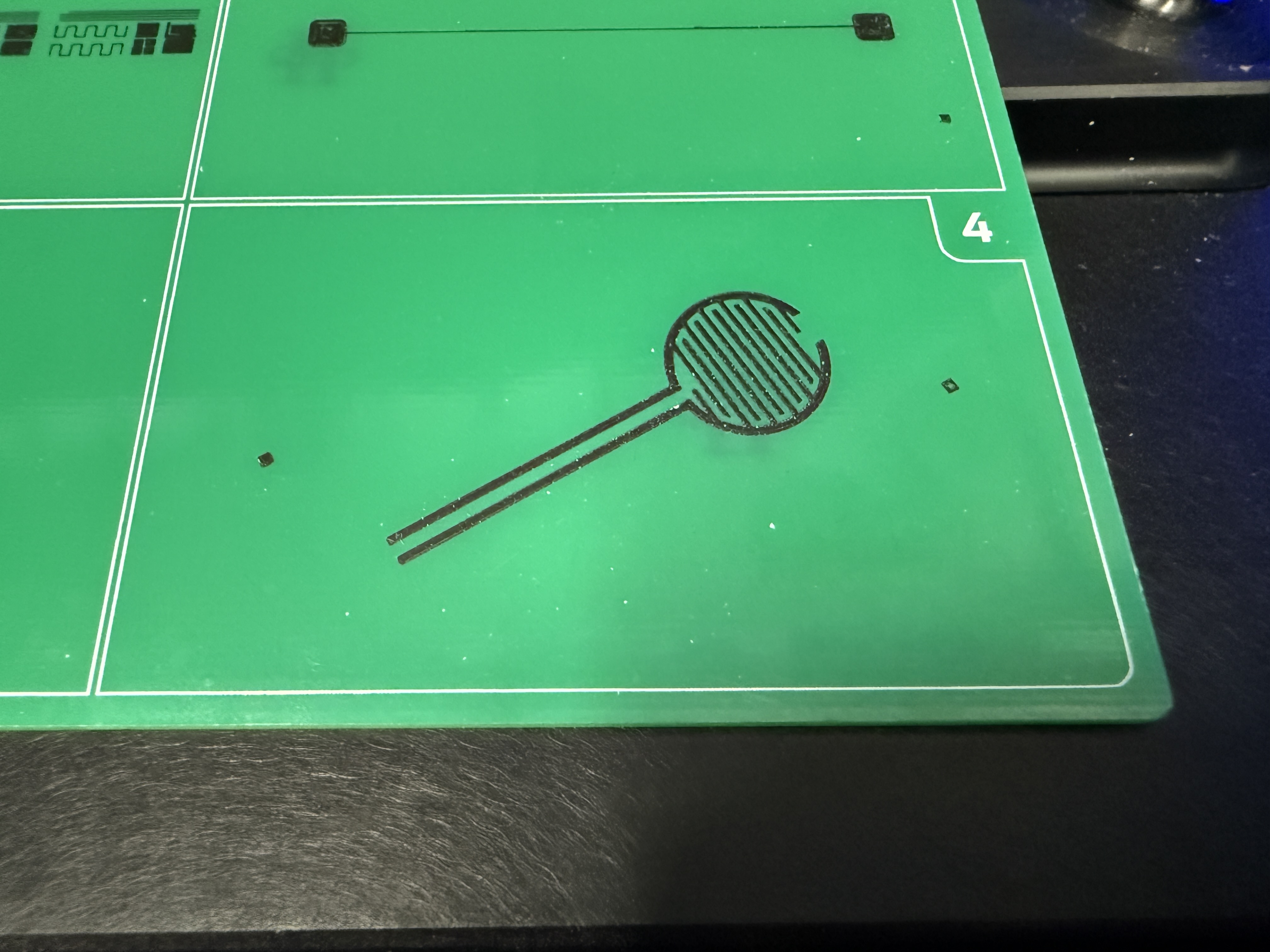
We’ll be using the alignment fiducials again for our design. For complex shapes or multilayer prints, alignment fiducials really shine. This time we will line up our pattern to the alignment fiducials in the fourth quadrant. You may have noticed that these ones are off axis. Because of that we’ll need to utilize each of the alignment steps fully to ensure great alignment.
{% stepper %}
{% step %}
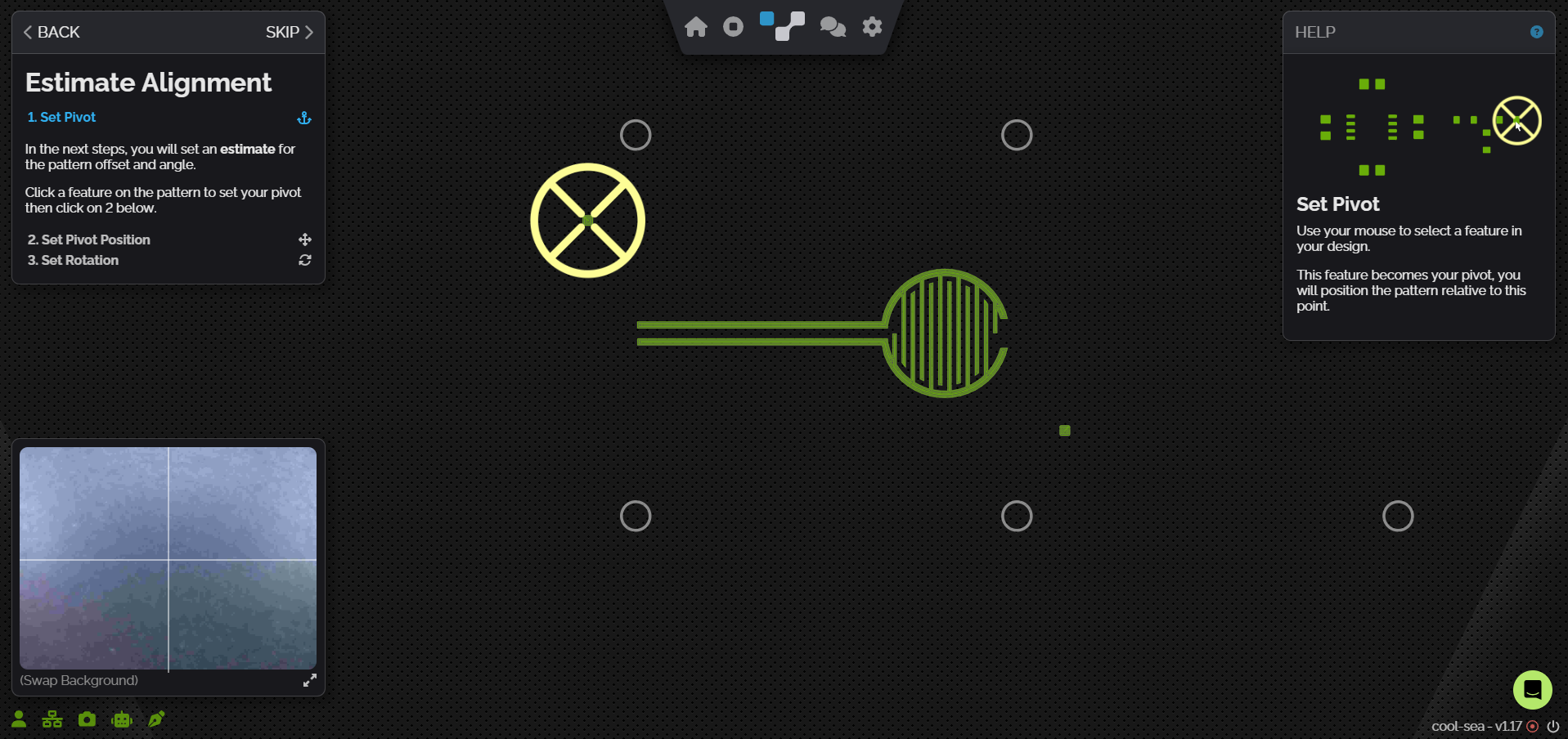
#### Set Pivot
For Print 4 we’ll select either of the two alignment fiducials as our pivot. By default, the top left one is probably selected, so we can either leave it selected or we can click on the other fiducial with our mouse to select it. Once clicked, we should see the yellow crosshair move to our selected feature.
{% endstep %}
{% step %}
#### Set Pivot Position
With our pivot set, we can click on the second step Set Pivot Position. The camera will need a minute to prepare itself on the XYZ tool and then move to our substrate. It’s an important step in making sure our prints are properly aligned.
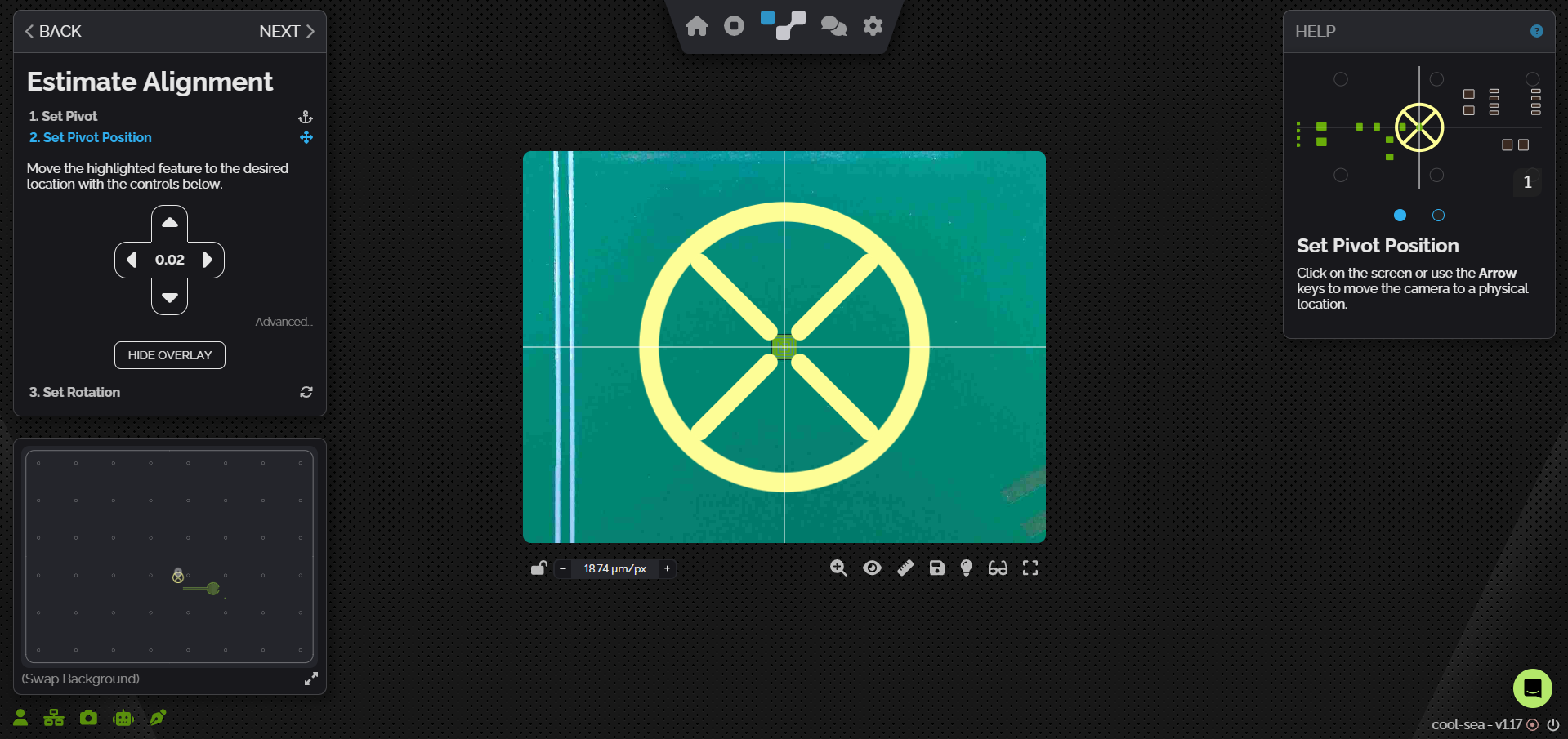
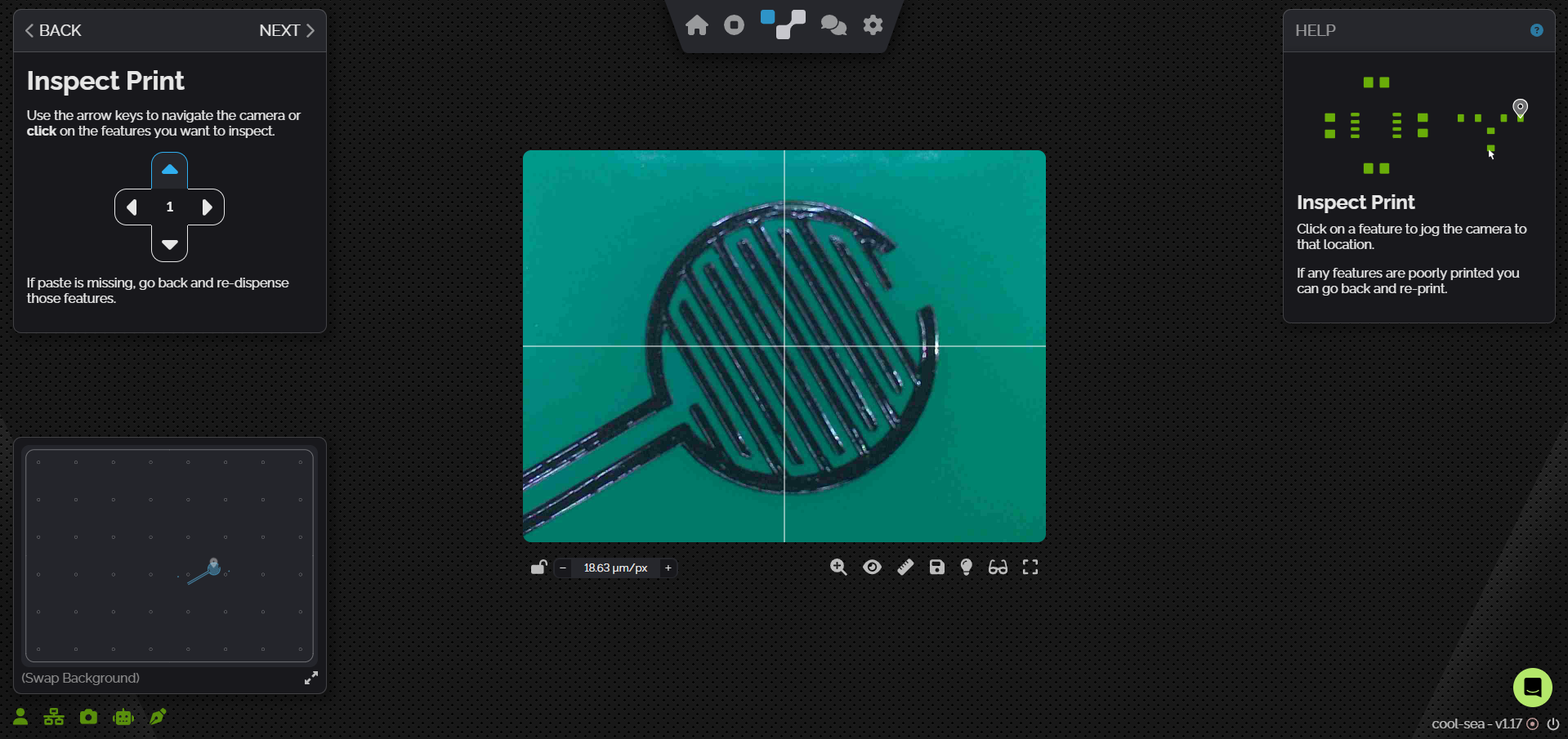
Once the camera is finished preparing, we’ll see our design as an AR overlay positioned in the center over NOVA’s print area. We’ll use the movement controls or arrows on our keyboard to move our Pivot feature over quadrant 4 of our substrate.
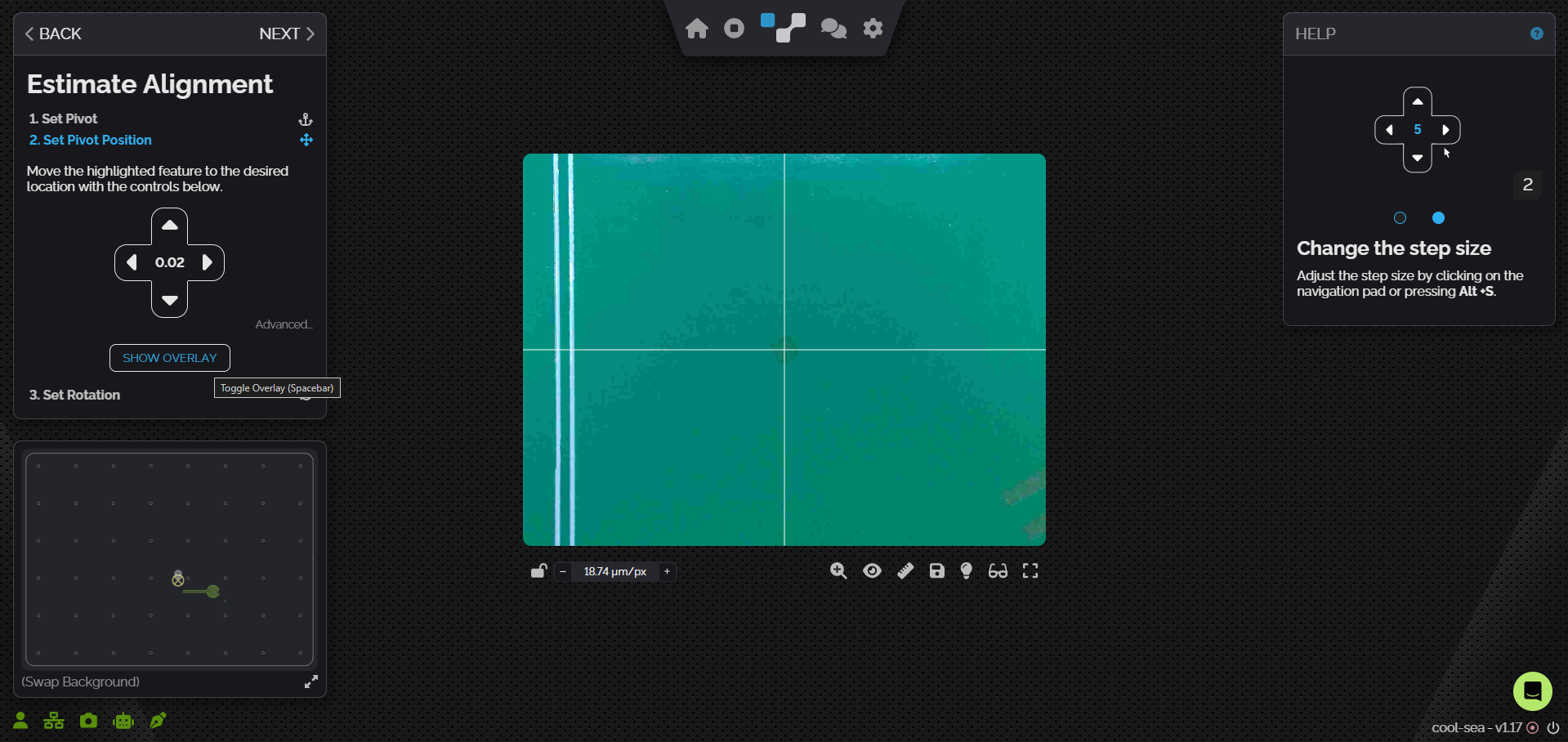
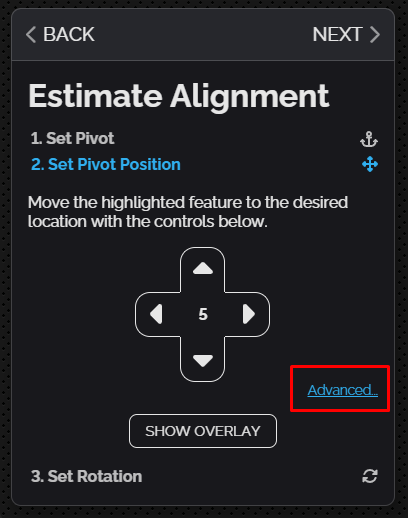
With our design off axis to our AR overlay our focus is only to align the center of our pivot to the center of the feature on our board. We’ll need to fine tune the alignment to ensure it’s spot on. So we can change the step size of the movement controls by clicking the number in the middle.
Another way to get a more precise alignment is to hide the AR overlay and focus solely on the center of the camera feed as this is aligned to the center of our pivot. We can see the option to Hide Overlay right below our movement controls
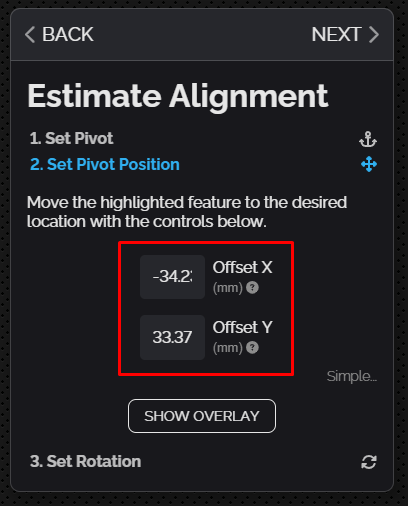
For even more precision we can switch to advanced mode in the bottom right corner of the Set Pivot Position options. With the advanced options we can input exactly how much we’d like to move the pivot in either the X or Y axis. These values can be either positive or negative to move the pivot accordingly
Move to the Set Rotation step once the placement looks right.
{% endstep %}
{% step %}
#### Set Rotation
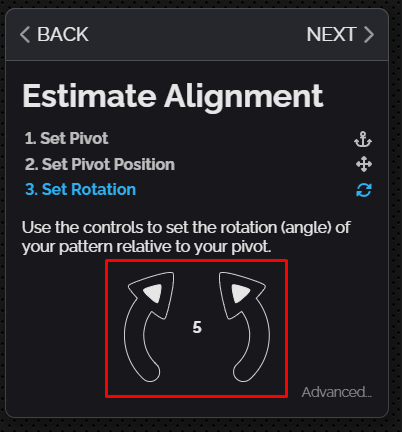
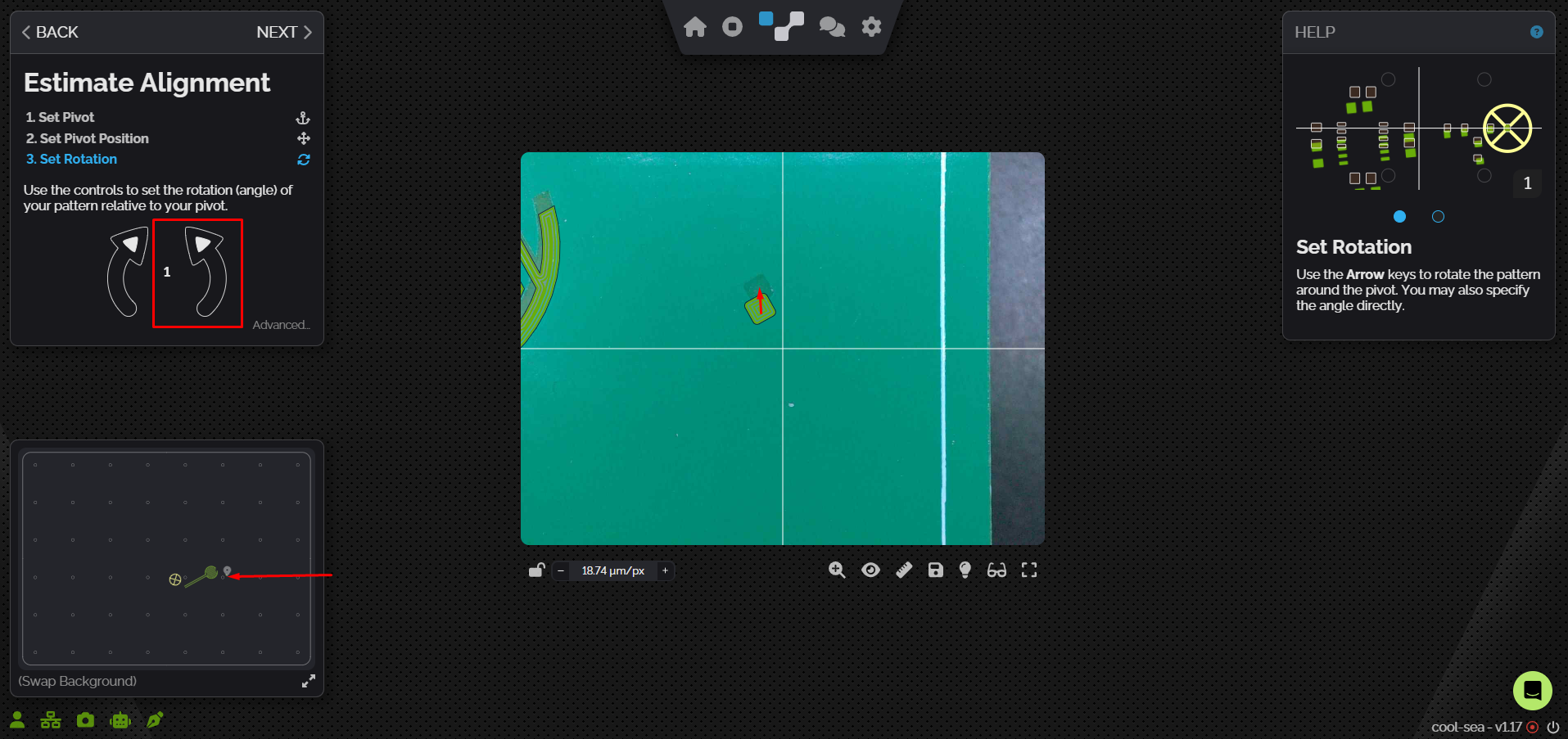
This step is especially important this time because our design is off-axis. The controls are straightforward: click the arrows to rotate in the indicated direction, using the step size shown at the center. As with pivot movement, you can toggle the angle's step size by clicking the number.
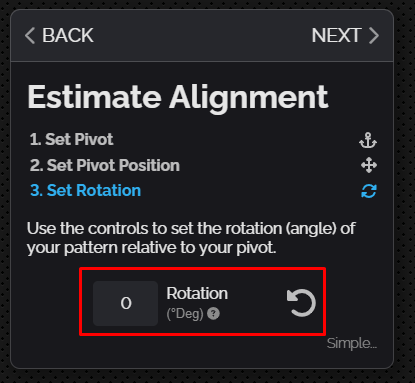
We also have advanced options in the bottom right again. In advanced more we can set a specific degree we’d like our design rotated to.
We don’t have a lot of our design in view when adjusting rotation because the focus is the center of our pivot. To see more of our design we can click on the map in the bottom left corner of the software. This will move the camera to that location without snapping the pivot to that point, allowing us to fine tune the rotation at the other end of our design.
{% hint style="info" %}
Clicking in the camera feed will move the pivot center to that location, clicking in the map view will move the camera to that location without shifting the pivot.
{% endhint %}
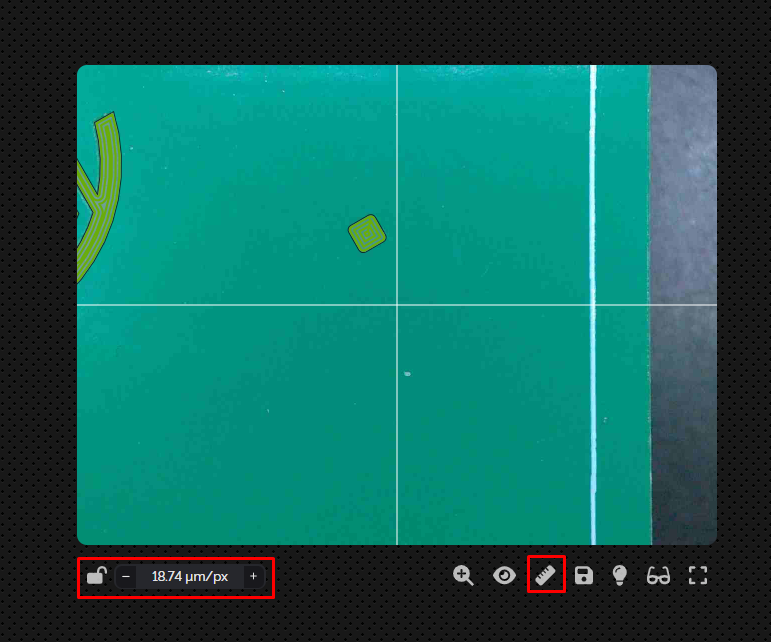
Now that we’ve moved to the other side of our design we may notice that the scaling of our AR overlay is off. This can make alignment more difficult, but it can be manually corrected. Below the camera feed are a set of options to adjust and lock in the µm/px ratio. This setting is used by the camera to determine the scale of our design based on the focal point of the camera. To adjust we can click plus or minus while focused on the other side of our design. Once the scaling looks correct we can click on the lock to lock the value in. We can also have NOVA try and recalculate the ratio automatically by clicking the ruler icon.
Once we have our rotation spot on we can move to the next step.
{% endstep %}
{% endstepper %}
###
Tune Alignment
To double check that our alignment is where we want it, we’ll use the Tune Alignment step.
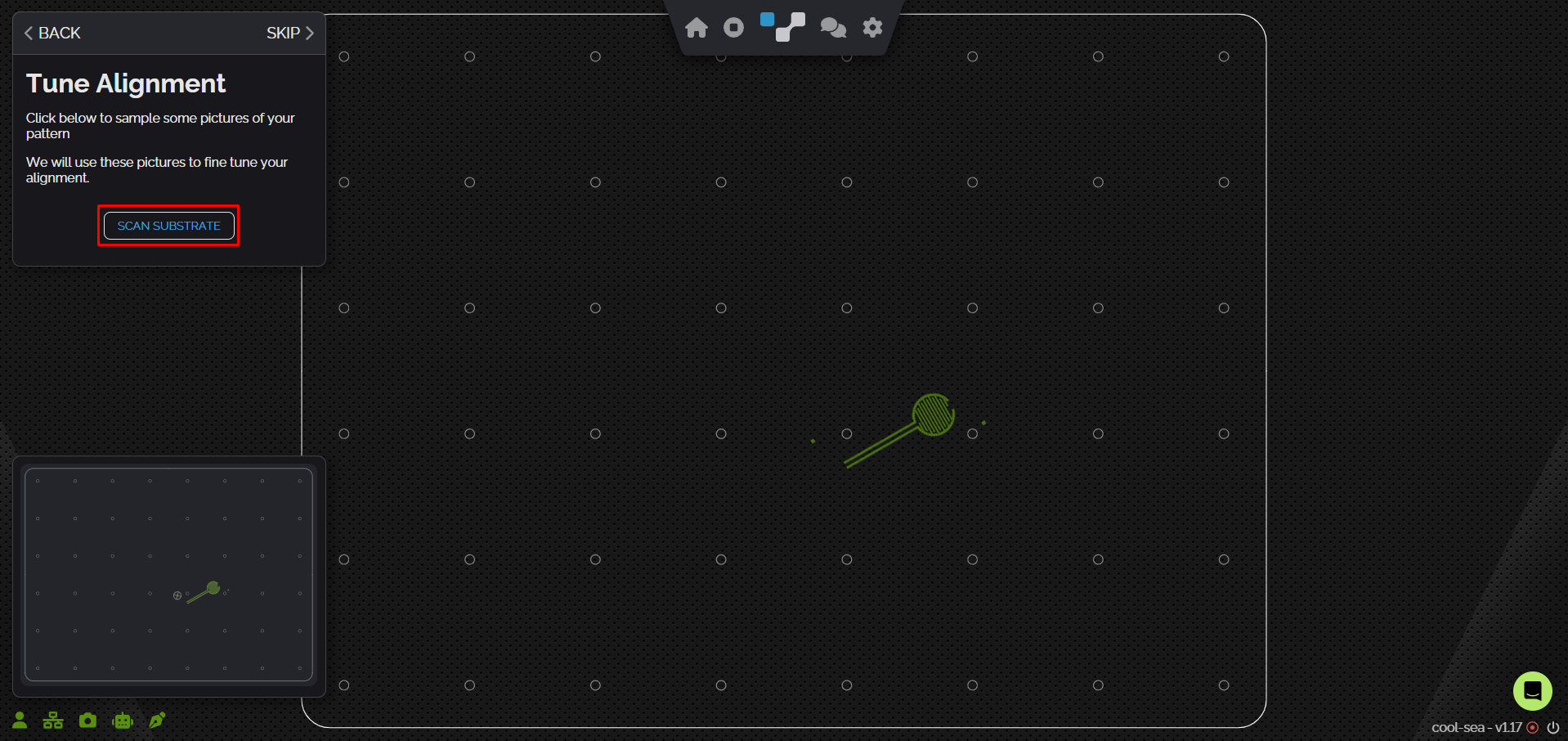
We’ll start by clicking the Scan Substrate button. NOVA will then take a couple pictures across our substrate to show how our design is aligned in those places.
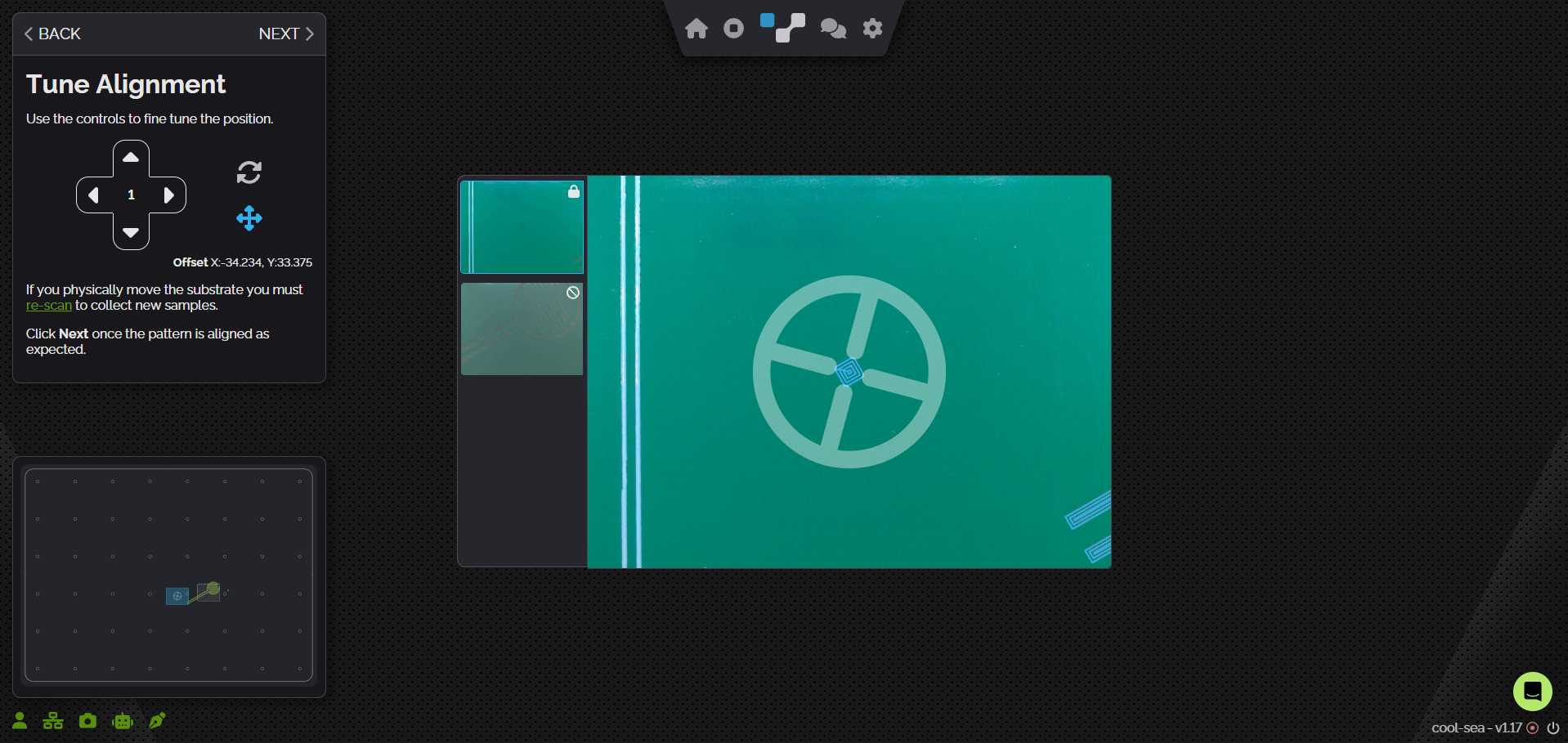
Once our substrate has been scanned we can check each of the scans to validate our alignment.
{% hint style="info" %}
It’s important to focus on the center of the camera, even though we do camera correction there is always going to be some distortion the further from the center you get.
{% endhint %}
If anything is going to be off, it will likely be the rotation. We can use the rotation controls to tune the alignment here. Rotation can be adjusted while viewing any of the scans.
If the whole design needs to be shifted (translated) slightly in X or Y we can do that by moving the pivot. When we switch from rotation to translation we’ll be forced to view the scan with the original pivot position. Once we’ve moved the pivot we can look at the other scans by switching back to rotation to verify the change improved our alignment.
Once we’re happy with the alignment of the second point we can click next.
### Measure Height & Print
With alignment complete, we can probe the surface of our substrate and work through the steps to complete the print. Be sure to inspect your print with the camera to make sure the alignment is spot on.
And with that, the Starter Project is complete. You’re ready to jump into calibrating materials and printing your own projects.
---
# Agent Instructions
This documentation is published with GitBook. GitBook is the documentation platform designed so that both humans and AI agents can read, navigate, and reason over technical content effectively. Learn more at gitbook.com.
## Querying This Documentation
If you need additional information that is not directly available in this page, you can query the documentation by asking a question.
Perform an HTTP GET request on the following URL with the `ask` and `goal` query parameters:
```
GET https://docs.voltera.io/docs/nova/getting-started/starter-project/print-4-alignment.md?ask=&goal=
```
`ask` is the immediate question: it should be specific, self-contained, and written in natural language.
`goal` is what the user is ultimately trying to achieve, the reason they need the answer. Sharing it helps GitBook give you a better, more relevant answer. A goal is most helpful when it describes the outcome the user wants rather than restating the question. For example, with `ask=how do I create an API token`, a goal like `automate deployments from our CI pipeline` lets GitBook tailor the answer to that use case.
The response will contain a direct answer to the question and relevant excerpts and sources from the documentation.
Use this mechanism when the answer is not explicitly present in the current page, you need clarification or additional context, or you want to retrieve related documentation sections.