> For the complete documentation index, see [llms.txt](https://docs.voltera.io/docs/llms.txt). Markdown versions of documentation pages are available by appending `.md` to page URLs; this page is available as [Markdown](https://docs.voltera.io/docs/nova/getting-started/starter-project/print-2-dispense.md).
# Print 2: Dispense
To start a simple print with our newly calibrated settings, we can use the Dispense workflow. This workflow will guide us through each step of the process needed to get a great print on our substrate.
***
To get started, we’ll select the **DISPENSE** workflow tile from the home screen of NOVA’s software:
Much like the Calibrate workflow, The Dispense workflow has a similar interface. All of the prompts for us as the user will appear on the left hand side of the screen.
### Load Pattern
Our first step is to import the file that we would like to print. You can download the file for this exercise below and load it into the file import section:
{% file src="/files/wB0fuDOJAVZHIJElqNS7" %}
Once loaded, we will see the green file previewed in the print area in the center of the screen. We can zoom in to see it better by using the scroll wheel on the mouse or the similar action for a trackpad.
With the file now loaded, we can click Next.
### Choose Materials
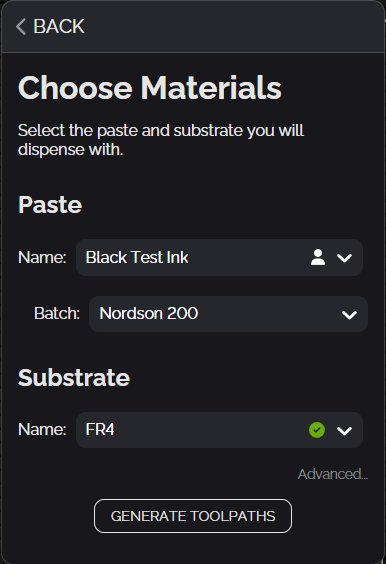
We’re now prompted to load in the materials we prepared earlier. For the **Paste** selection we’ll find the ink we calibrated and select the appropriate batch. Then, for the **Substrate** we’ll select the FR4 substrate we added from the explore library.
With our materials selected, we can now Generate Toolpaths for our files. Since our file uses our material settings to determine the optimal path to draw we need to have those selected first. Once we click the Generate Toolpaths button we will see the pathing load in our print preview. If we zoom in we can see the individual toolpaths more clearly.
### Mount Substrate
Our substrate should already be in place from the previous exercise. But if this is a new print session jump back to the [Mounting the Substrate prep step](/docs/nova/getting-started/starter-project/setup/mounting-the-substrate.md) and then come back when ready.
### Estimate Alignment
The alignment process here will be essentially the same as the alignment we did in the first exercise. We’ll be a little more picky about placement this time around. Instead of aligning anywhere in the quadrant we’ll be aligning to specific points.
{% stepper %}
{% step %}
#### Set Pivot
For this design we’ll select the small alignment pad in the top left corner. This feature isn’t critical to our print, it has been added just for alignment. Often these are called alignment fiducials and they can be used as alignment markers for more complicated designs, like a multilayer print. To select this feature we’ll click on it with our mouse. Once clicked, we should see the yellow crosshair move to our selected feature (it may be pre selected by default).
{% endstep %}
{% step %}
#### Set Pivot Position
With our pivot set, we can click on the second step Set Pivot Position. The camera will need a minute to prepare itself on the XYZ tool and then move to our substrate. It’s an important step in making sure our prints are properly aligned.
Once the camera is finished preparing, we’ll see our design as an AR overlay positioned in the center over NOVA’s print area. We’ll use the movement controls or arrows on our keyboard to move our Pivot feature over quadrant 2 of our substrate. For this print we’re aiming to align our pivot point with the fiducial already on the board. To fine tune the alignment we can change the step size of the movement controls by clicking the number in the middle. We can also click in the camera feed to move the pivot to the position of our click.
Click Next once the placement looks right.
{% endstep %}
{% step %}
#### Set Rotation
Because we mounted our substrate in line with the mounting grid, we shouldn’t need to worry about rotation for this alignment. So we can click Next again.
{% endstep %}
{% endstepper %}
###
Tune Alignment
This exercise we’re going to go through the tune alignment step. This is because we were only focused on one of the fiducials in our design in the previous step. We can use the Tune Alignment step to ensure our other fiducial is also aligned properly.
To do this, we’ll click the **SCAN SUBSTRATE** button. NOVA will then take a couple pictures across our substrate to show how our design is aligned in those places.
Once our substrate has been scanned we’ll focus in on the second fiducial:
If anything is going to be off, it will likely be the rotation. We can use the rotation controls to tune the alignment here. Again, we can adjust the step size by clicking the number in the middle of the controls.
Once we’re happy with the alignment of the second point we can click next.
### Measure Height
As a recap, we use the probe to measure across the surface of our substrate to generate a heightmap for the dispenser to follow. You’ll notice we’re also measuring the calibration plate in this step.
### Prepare Dispenser
We've already done this so we can now mount the dispenser and click next. If this is a new print session, go back to the [Dispenser Assembly](/docs/nova/getting-started/starter-project/setup/dispenser-assembly.md) prep step and come back when ready.
### Flow Check
This step differs from the Calibration workflow because we’re not looking to adjust the print settings for the flow check. We just want to ensure that ink is coming out the tip of our nozzle before we start printing. This is more of a priming step to ensure our dispenser is ready for printing.
For the flow check, NOVA will print 3 lines and then snap a picture. We’re not worried about all three lines being full, once we see one solid line we’re ready to print. So we can repeat this step until we see one solid line.
### Print Pattern
We’re ready to print our pattern. By default the whole pattern is selected to start printing. This is indicated by it displaying green. Unselected features will show blue. You’ll notice a few parameters can be changed in this step as well. This is to allow us to make tweaks to our **Dispense pressure** and **Relief pressure** on the fly while our pattern prints. We won’t worry about them for this print, but it's worth noting for the future.
When we’re ready to print we can click the Start button.
### Inspect Print
Once our print is complete we can use NOVA’s onboard camera to inspect our print. We can use the arrow keys to move the camera or we can click on our print location in the print area map in the bottom left corner of the software.
### Artwork Finished
Our dispense workflow is complete. We can click **EXIT** to return back to the main screen of the software. On the way, we’re asked to provide quick feedback on where our print went well or not.
Feel free to move onto the next print exercise.
---
# Agent Instructions
This documentation is published with GitBook. GitBook is the documentation platform designed so that both humans and AI agents can read, navigate, and reason over technical content effectively. Learn more at gitbook.com.
## Querying This Documentation
If you need additional information that is not directly available in this page, you can query the documentation by asking a question.
Perform an HTTP GET request on the following URL with the `ask` and `goal` query parameters:
```
GET https://docs.voltera.io/docs/nova/getting-started/starter-project/print-2-dispense.md?ask=&goal=
```
`ask` is the immediate question: it should be specific, self-contained, and written in natural language.
`goal` is what the user is ultimately trying to achieve, the reason they need the answer. Sharing it helps GitBook give you a better, more relevant answer. A goal is most helpful when it describes the outcome the user wants rather than restating the question. For example, with `ask=how do I create an API token`, a goal like `automate deployments from our CI pipeline` lets GitBook tailor the answer to that use case.
The response will contain a direct answer to the question and relevant excerpts and sources from the documentation.
Use this mechanism when the answer is not explicitly present in the current page, you need clarification or additional context, or you want to retrieve related documentation sections.